How to print and staple a booklet in Macintosh operating systems with tabloid-sized paper
How to Print and Staple a Booklet in Macintosh Operating Systems with Tabloid-Sized Paper
Overview
The following instructions should allow you to print tabloid-size stapled booklets with the Lexmark X954 MFP.
Driver configuration steps
These instructions will show you how to uninstall the current driver, reinstall a different driver and configure the driver's duplex and finishing features.
Step | Action |
1 | Delete the existing queue pointing to the Lexmark X954 |
2 | Download and run the cleanup tool. See article ID# removing-lexmark-files-from-mac-1012x-1011x-108x-107x-106x-105x-so6765.dita for information on removing all Lexmark files from your Mac computer. Note: The cleanup tool does not delete the print queue; hence, the printer driver needs to be deleted manually on the computer. |
3 | Manually remove the Lexmark printer driver by navigating to System Preferences from Finder > then select Print & Fax or Print & Scan or Printers & Scanners > select the Lexmark printer from the list, then click the minus (-) sign button to delete the printer. In this sample screen shot below, the button is outlined in red . 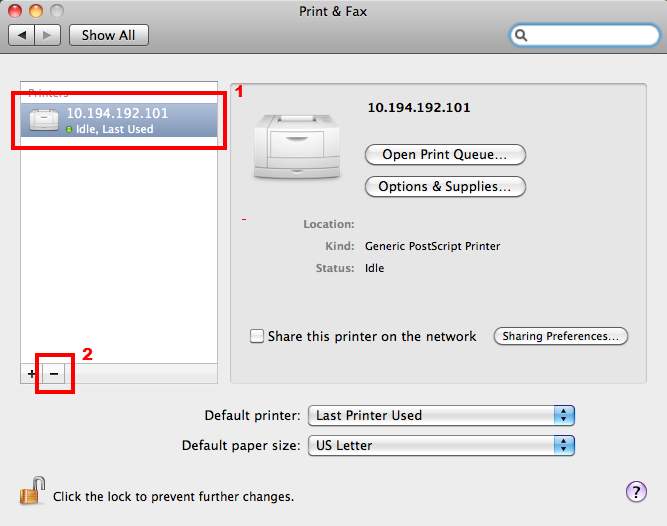 |
4 |
Click here to download the Lexmark modified print driver . |
5 | Install the newly downloaded printer driver by executing the steps found in Installing Lexmark print drivers in macOS . Note: In this link, proceed to Section B for installing the driver. |
6 | Open the Safari or Firefox web browser and enter http://localhost:631/, and then follow these steps: a. Go to the Printers tab and select the queue pointing to the X954 b. Select Set default options from the Administration drop-down menu. c. Click on Options Installed d. Once under the Options Installed Menu , select Tray 1+2+3+4 from the Trays drop-down menu. e. Select Installed from the Duplexer drop-down menu. f. Select ' 3 Optional Bins ' from the Output Bins dropdown menu. g. Select Booklet Finisher from the Output Finisher drop-down menu. h. After selecting ALL entries, select Set Default Options . i. Clicking on the administration tab should display Printer lexmark _x954 default options have been set successfully . |
7 | Open the file you are trying to print, and select Print from the File menu, and then follow these steps: a. When the Application print dialog opens, click on Page Setup . b. Select the lexmark_x954 print queue from the ' format for ' drop-down menu. c. Select the Paper Size as ' Letter ' , and click OK . d. Click on the Printer button . e. Select Printer Features . f. Select Booklet 1 from the Feature Sets drop-down menu. g. Set Enable Booklet Printing to ON . h. Select Booklet 2 from the Features Sets drop-down menu, and check Maintain original page size on the booklet page. i. Select Finishing from feature sets. j. Select Fold and Staple from the fold drop-down menu, and click Print . k. Click on Print again from the main Print screen . Note: When you use the Staple and Fold option in booklet printing, make sure to load the paper where the short edge is facing the entry level in feeding the paper through; otherwise, it won’t perform a staple and fold job. |
If the issue persists, search for more information related to this issue or contact support for further assistance.
LEGACY ID:
SO8628