Processes Blocked by Firewall Applications Prevent Scanning Functions (Lasers '12)
Processes Blocked by Firewall Applications Prevent Scanning Functions (Lasers '12)
What you will see
Multiple symptoms may indicate a
firewall
is preventing communication.- Computer Connection Errordisplays after selecting theScan Profileon the printer operator panel.
- Computer Connection Errordisplays when selecting the scan toComputeroption on the printer operator panel.
- Or, you areunable to scanwhen initiatingquick-scansfrom the printer operator panel, or scans fromLexmark Printer Home.
- The problem persists after restarting the computer.
- You receive an error report which contains any givenLM...orlex...process. Click here for illustration.
- You receive some othercommunication failure errormessage.
Before you continue...
You should eliminate other communication issues as a possible root cause for the symptoms described above.
First, if one function is failing you should always try another printer/scanner function to test communication.
For example
If...
| Then...
|
You cannot print, but you are able to scan... | Proceed to
Suggested Remedy
.It is important to understand that other print queue-related issues are possible. |
You cannot scan, but you are able to print... | Proceed to
Suggested Remedy
. |
You cannot scan or print... | You should see Additional Actions to further validate printer-to-pc communication before proceeding to
Suggested Remedy
. |
Additional Actions
Action...
| Purpose...
|
1. Identify status " Connected " on the network setup (settings) page? To do this from the operator panel:
| A status of ' connected ' indicates the printer is communicating on a network; however, it does not necessarily prove that it is communicating on your network. |
2. Access the printer's web page. To do this:
| This guarantees that your printer is communicating with your PC. |

It is possible that a scan function is not working because the process utilized by one of the printer functions is blocked.
Step 1:
Identify you firewall application.Identify your firewall application and identify where you can make changes to your firewall protection settings.
IMPORTANT!
This is where you will create exceptions for processes that are listed in the next step below.Here is a list of possible firewall types, listed from the most common to least common found on PC:
- 3rd partysecurity software applications; i.e., antivirus software and other 3rd party firewall applications
- Operating systemfirewalls
- Computerhardware BIOS firewalls
- Routerhardware firewalls
- VPNfirewalls
Now that you have identified your firewall application and where you create exceptions for blocked processes, you will want to use the table below to identify whether a blocked process is visible.
Be aware of your printer model's prefix for the
lscn
.exe and mon
.exe processes.Model-specific
prefixes, to include:- X790Series<LMACS>
- X920Series<LMADB>
- X950Series<LMACW>
- X548Series<LMADD>
- X6500eScanner <<LMADC>
Common
prefixes: <LM
>, <lex
>For example,
LMACT
mon.exe contains the prefix <LMACS
> which references a Lexmark
X792
printer.<prefix> lscn .exeLean Scan | Required for successful Scan Profile communication. For example, if you press Scan > Scan Profile ... | Computer Connection Error is displayed on the printer. |
<prefix> mon .exeDevice Monitor | This listens for button presses from the device for operator panel-initiated scanning .For example, if you press Scan > Computer ... | No response when you press  Computer Connection Error displays on the printer. |
LM
smc .exe/ lmab1err.exe (All Models)Status Monitor Center Status Messenger in Windows | The Status Monitor Center controls:
| Logs and printer notifications will not be displayed. |
LM psu.exe (All Models)Printer Setup Utility | Allows for the configuration of printer fax settings and address book settings. Lexmark Printer Setup Utility or Fax Setup Wizard utilizes this process. | Unable to add/edit contacts or change settings on the printer from either of these utilities |
LM wpss.exe (All Models)Wireless Print Server Setup Utility | Necessary for the successful configuration your wireless printer. Lexmark Wireless Setup Utility requires this process. | Gray Continue button and the inability to configure wireless configuration parameters on the printer |
(All Models) lex twprotocol.dll,lex networkds.dsLM abscw.dllLM abmini.dllLM abtwds.dsLM abtwpro.dllLM abtwui.dllLM abdrs.dllLM abdrs64.dllLM zzz_32__bc.dllLM zzz_32serv.dll | These associated local/ network
TWAIN files require a network TWAIN compliant application to use them... | If the application that uses these files is blocked by a firewall, then these are files are blocked by association. Make sure your scanning software (.exe) is not blocked by a firewall. |
LM pssuprint server setup utility | The print server setup utility provides a secondary method for first-time printer configuration of static IP parameters. | The utility is unable to find the printer or you receive a message that the utility is unable to find the printer.
Note: This utility does require the host PC be on the same subnet as the printer. |
scanwiz.exe (All Models) scanback utility | The scanback utility requires this process to assure a network communication path for scanback generated scan-to-pc profiles. | Any created shortcut (profile) utilizing this utility will fail, or in some instances you will not even be able to create the profile depending on your firewall security level. |
You have now identified the blocked process in your firewall application. You will now need to grant permissions in your firewall application to allow these processes to communicate over the network .
IM
PORTANT!
You need to know where your firewall software allows you to grant exceptions or permissions.
NOTE:
All firewall manufactures use slightly different terminology to reference this permission granting process; e.g., Permit Always
, Allow Full Access
, Allow
, etc. for some examples, but reference this article for the process names listed above.
If you receive a
Windows Security Alert
, make sure you select Allow access
for any LM
process: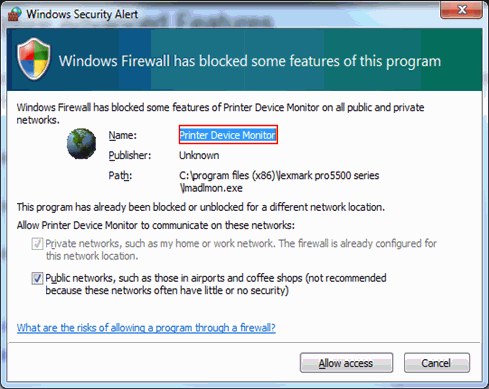
How to grant firewall exceptions with Microsoft's Windows Firewall
If you do not allow access for all
LM
and LEX
processes, you may need to follow the procedure similar to this one. To open Windows Firewall and allow exceptions in Microsoft™ Windows 7:
- Click onStart.
- Click onControl Panel.
- Click onWindows Firewall.
- Click onAllow a program or feature through Windows Firewall.
- Click onChange Settings.
- Place a checkmark in the box next to any the processes that require exceptions.NOTE:You may see more than one instance of the process. If so, make sure they are all selected for exceptions.
- Place a checkmark in the box for all logged-in network connections.
- ClickOK.
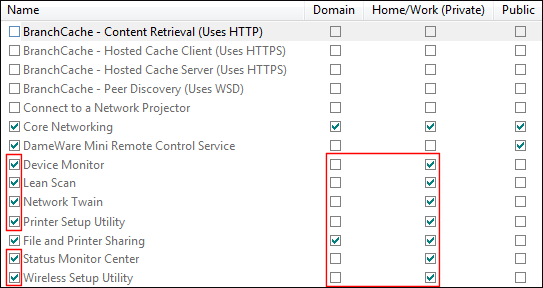
Click here for more information provided by Microsoft™.
S
till Need Help?
If you need additional assistance, please
contact
Lexmark Technical Support. NOTE:
When calling for support, you will be asked for your machine/model type
and serial number
(SN
). Please call from near a computer and printer in case the technician on the phone asks you to perform a task involving one or all of these devices. LEGACY ID:
SO6926