The printer displays an intermittent 231.03 paper jam
The Printer Displays an Intermittent 231.03 Paper Jam
Issue description
What you will see
The printer/MFP displays an intermittent
231.03 Paper Jam
message in the status bar on the touch screen.What the error means
A
231.03 Paper Jam
messages indicates that the printer has registered a piece of paper as having been detected in the paper path of the duplex section, and that it needs to be removed. See the image below for the possible location of the jammed page.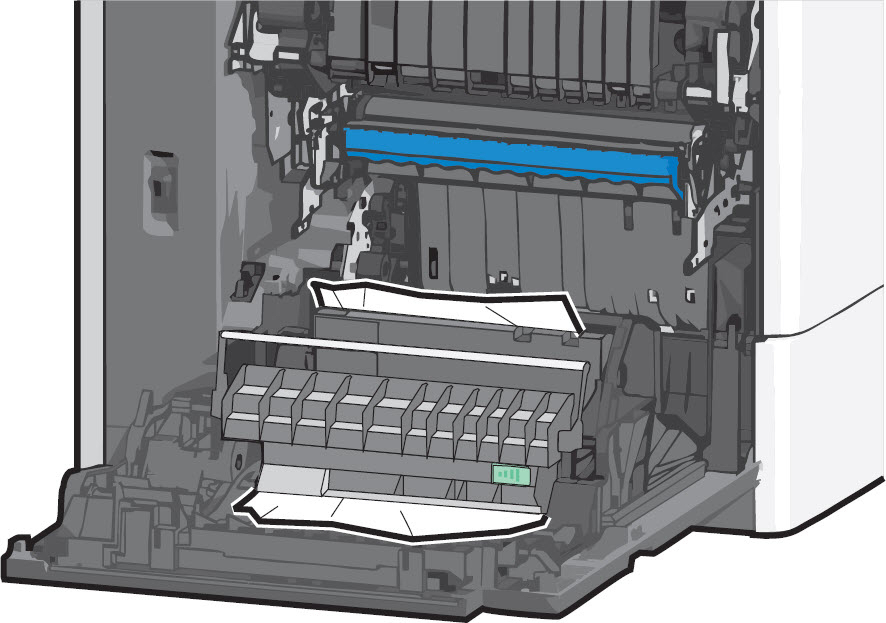
To locate and remove the jammed page, follow the steps in the ‘
Recommended actions
’ table below or refer to the printer's User's Guide
.Before performing the steps detailed below, verify whether the printer supports the size, weight, and input source of the paper you are using.
Solution
The images in the following table show the
Lexmark C792
models. However, these directions also apply to the Lexmark X792
models.Step | Action |
|---|---|
1 | Power off the printer/MFP completely and disconnect the power cable from its power supply. |
2 | Open the left-hand access door assembly. 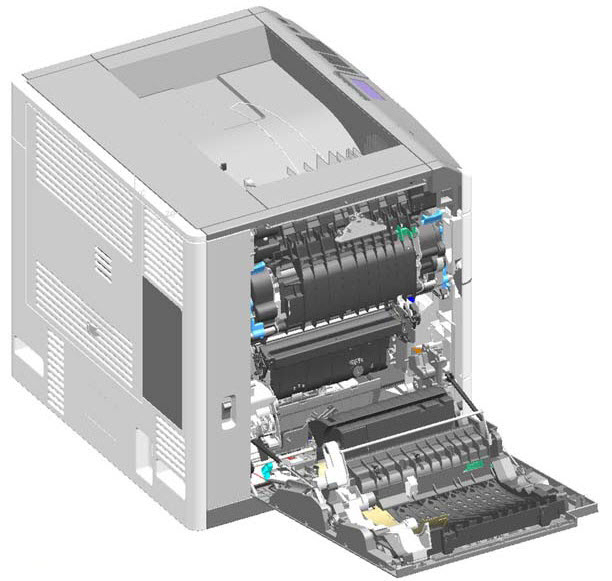 The inside of the printer/MFP may be hot. Allow it to cool before continuing. |
3 | Open the duplex cover. 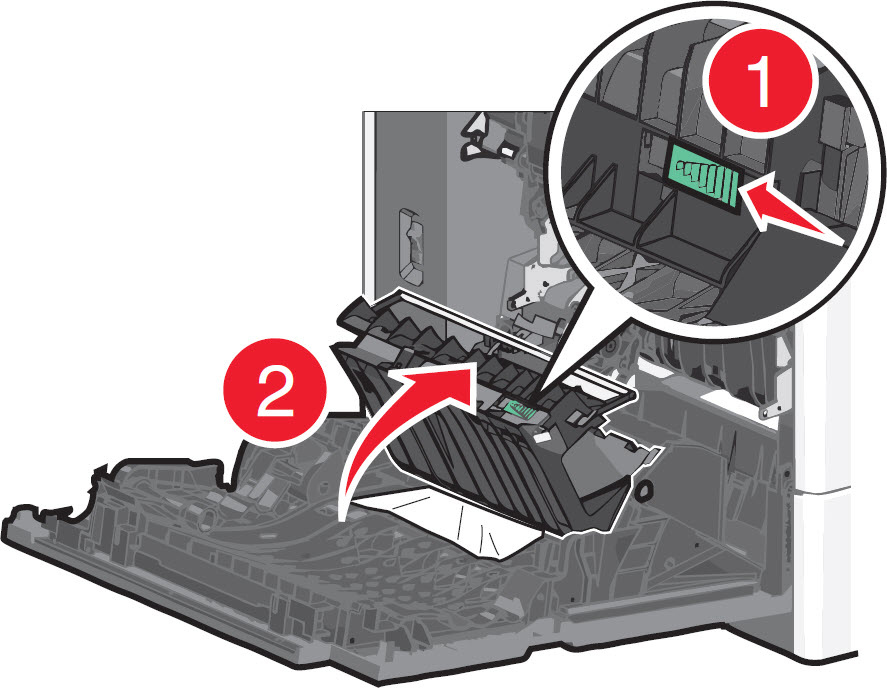 Slide the green latch (1) and pull the duplex cover up (2) , as illustrated in the image above. |
4 | Remove the jammed media. Depending on the media's location, pull it either up or down. Since media can tear during a paper jam, be sure to remove all its fragments from the printer. |
5 | Check for any broken or loose parts on the duplex section. If damage exists, a service call will likely be required to resolve the issue. |
6 | Close the duplex cover. Close all doors and covers completely. |
7 | Power on the printer/MFP and try printing again. If the page prints, the printer is functioning correctly. |
If the error is something other than a duplex (
230
– 239
) paper jam, use the location described in the error or the Show Areas
feature on the printer/MFP operator panel to help you locate and clear the jam. Once the jammed paper is removed, touch the Continue, jam cleared
on the printer/MFP's control panel and try printing again. If you cannot locate any jammed media anywhere inside the printer, a sensor unit may be failing. This will require a service action to correct. For information on arranging repair service, contact Lexmark Technical Support
or a local authorized service center in your area.Service action
- Power off the printer/MFP completely and disconnect the power cable from its power supply.
- Open theleft-hand access door assembly.The inside of the printer/MFP may be hot. Allow it to cool before continuing.
- Slide the latch to open theduplex cover assembly.
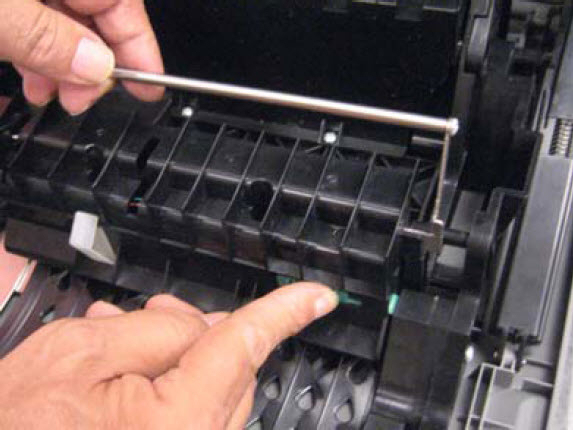
- Check theD1 sensor flagandD2 sensor flagfor damage. If damage is found, they may not be functioning properly.If damage exists, replace the damaged sensor flags.
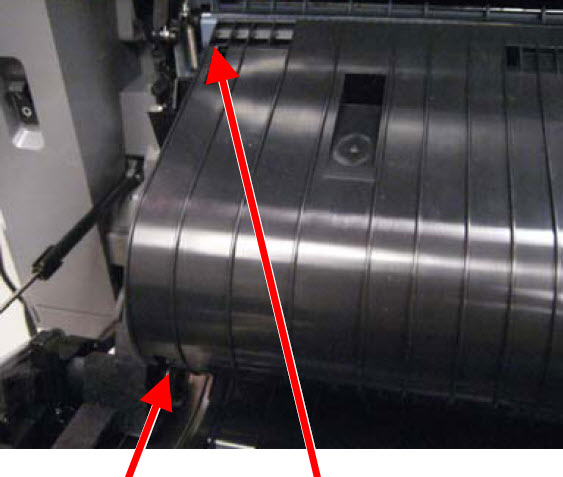
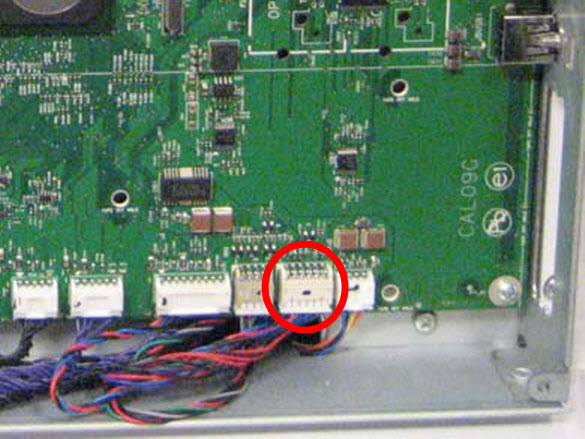
- If thesensor flagsappear undamaged, open the system board shield and check the cable in connectorJDP1for proper connection.IfJDP1cable appears loose, then try to reseat it. Also check for any damage. If damage exists, replace the damagedduplexer cable.
- Remove theduplex cable cover.
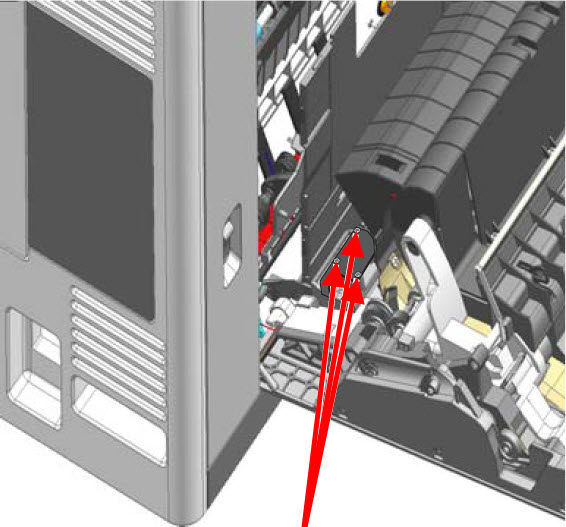
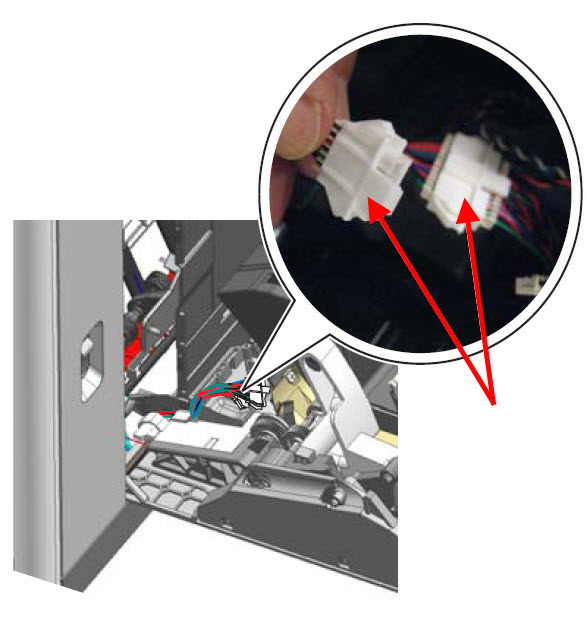
- Check theduplex cablefor proper connection.If theduplex cableappears loose, then try to reseat the cables. Also check for it damage. If damage exists, replace it.
- Reassemble the printer/MFP and connect the power cord to the outlet and to the printer. Power it on again and check whether the231.03 Paper Jamissue is still present. If so, replace theduplex assembly.
Ensure that all suggested troubleshooting steps listed above were followed. If issue persists after performing the steps mentioned and the duplex assembly is already been replaced, then a faulty
system board
is the cause.LEGACY ID:
SO6429