Installation Guide for 2016 Lexmark Printer Common Utilities Package
Installation Guide for 2016 Lexmark Printer Common Utilities Package
Overview
The Printer Common Utilities package is a combined driver and common applications bundle. It contains the Network TWAIN drivers (
), Lexmark Status Center (to display printer supplies and status information along with individual print job statuses while printing) and Lexmark Scan Center (to enable scanning with customizable scan configuration shortcuts and basic image processing).
to enable network scanning
Installing Common Utility Package v2.0.0.0
This package is only available from the Lexmark Support Site and is not part of the CD for the
CS/CX700
& CS/CX800
printer models.Below are the instructions and installation screen shots for the Windows 7 Operating system:
- Download theLexmark Printer Common Utilities Packagefrom the Lexmark Support Site Drivers and Downloads page. Enter theDevice Modeland clickFind Drivers & Downloads. In the search bar underFiles, type in ‘Common Utilities Package’. Click on link in the results to download the file.
- Once the download has completed, a screen will then appear to provide options on which type of installation is preferred.
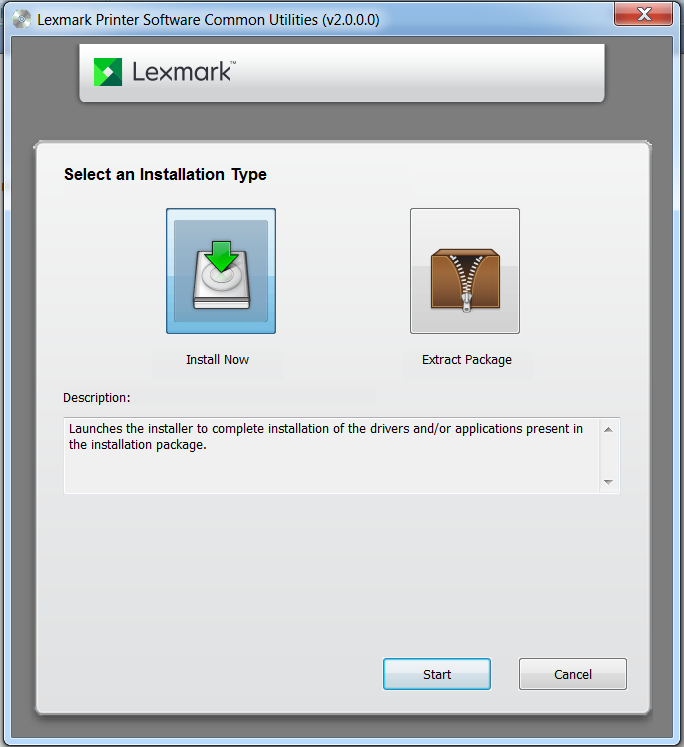
- Click onInstalland choose your preferred type of installation.
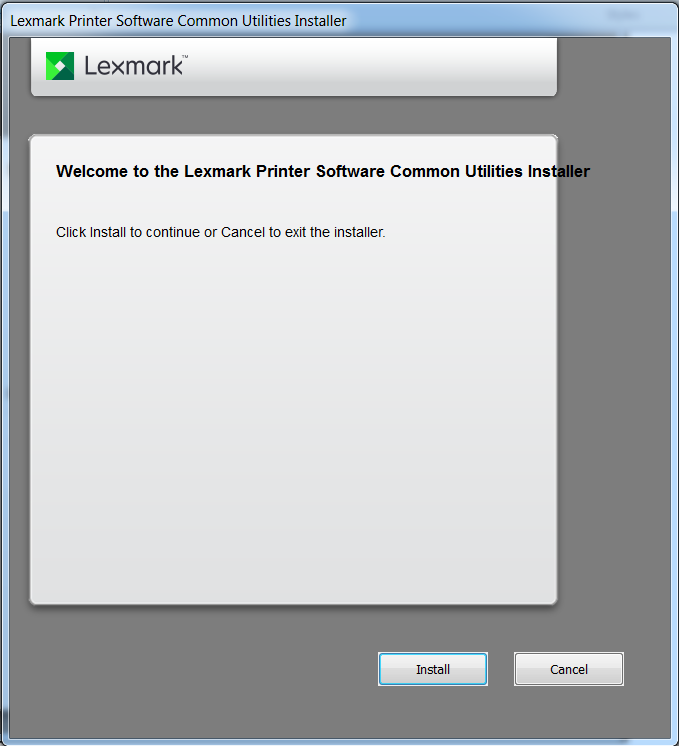
- Click onAcceptafter reading through theEnd User License Agreement(EULA).
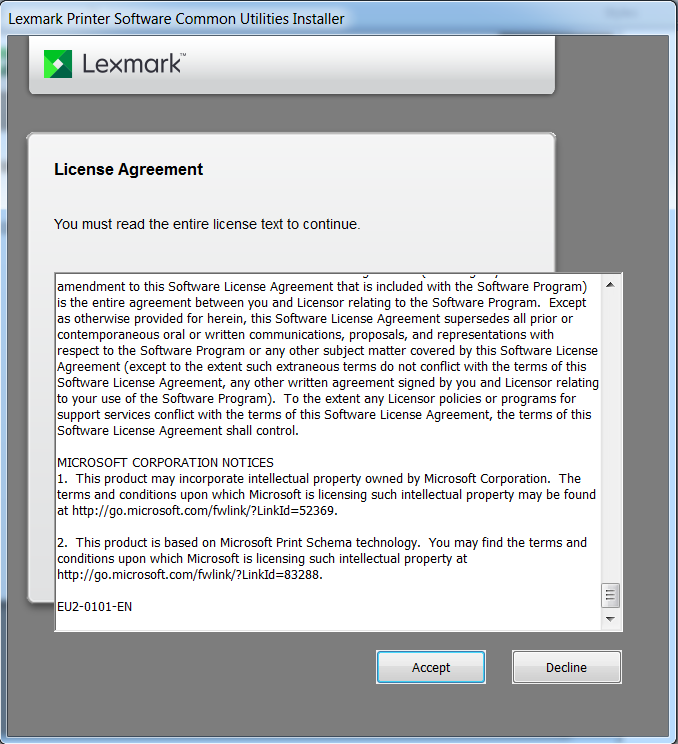
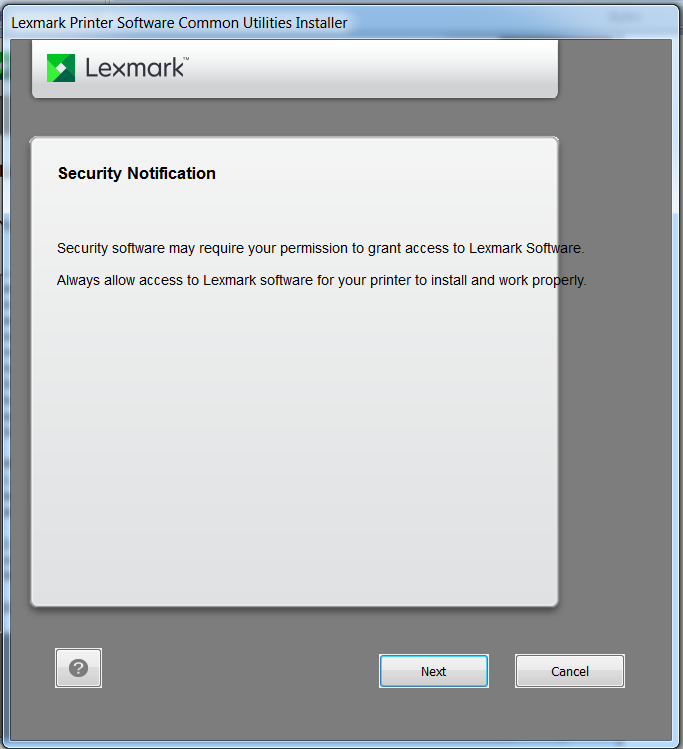
- ClickNextafter going over the Security Notification.
- The Additional Software dialog box will then display.
- Lexmark Network Twain Scan Driver and Lexmark Status Center components are also available on the driver CD that ships with the CS700/800 & CX700/800 printer models.
- Lexmark Scan Center is only available for these devices, and is not available on the CD that comes with the CS700/800 & CX700/800 printers.Note:If the components for the Lexmark Network Twain Scan Driver and Lexmark Status Center are already installed on the user PC, the installer will either skip the installation of these components or update them if they are older versions.
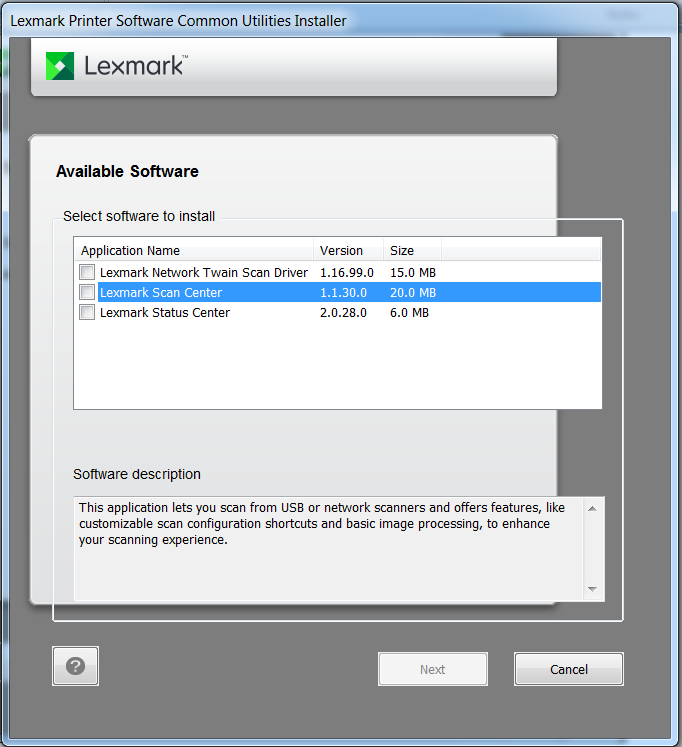 Example of what user will see if the Lexmark Status Center has been previously installed.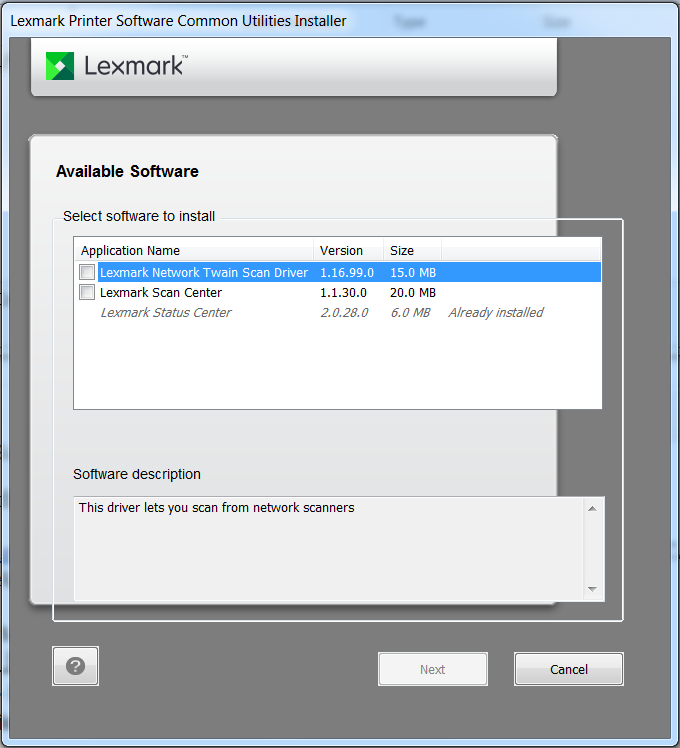
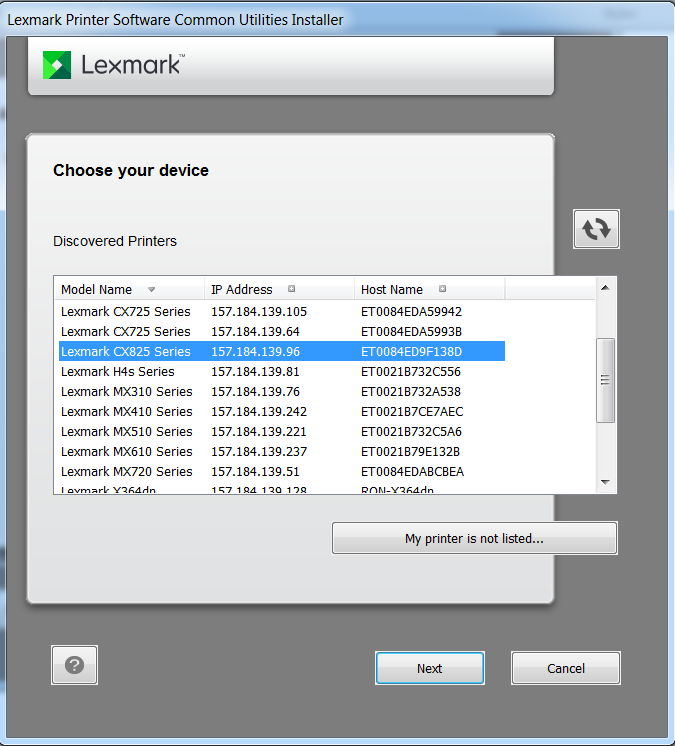
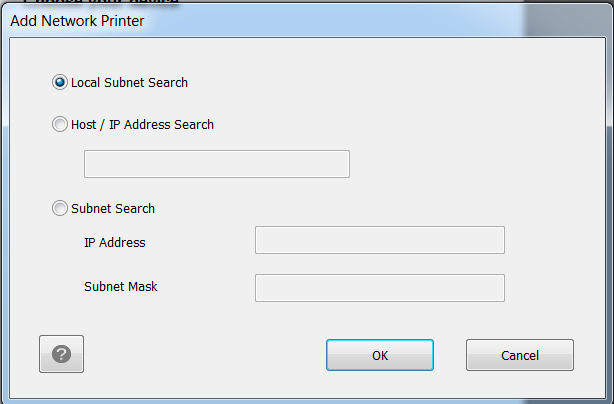
- Choose either a discovered printer or use "My Printer is not listed." to specify a device. Then clickNext.
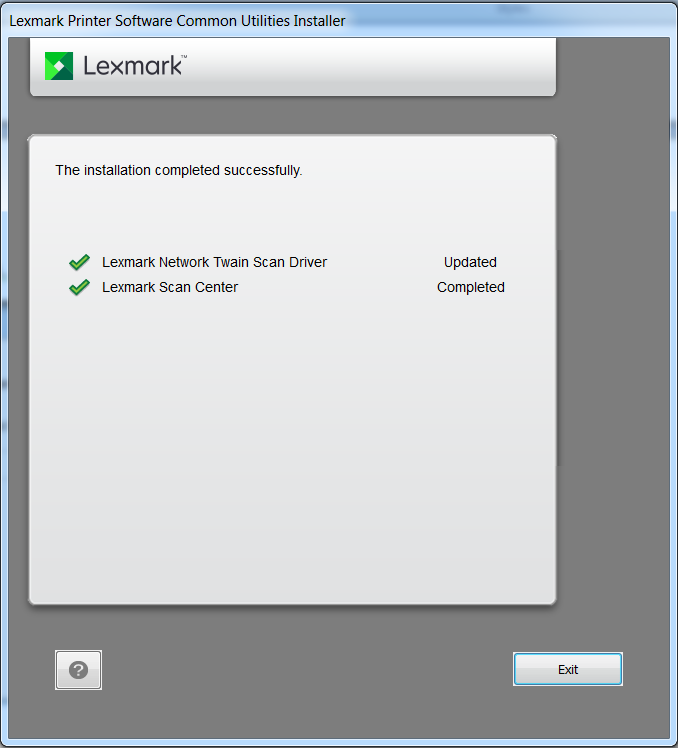
- After performing the steps above, the completed installation message box will then display. For the example pictured here:
- Lexmark Status Centerwas not listed because it was already installed and has the latest version.
- Lexmark Network Twain Scan Driverwas updated as the previously installed version was older.
- Lexmark Scan Centerwas installed for the first time.
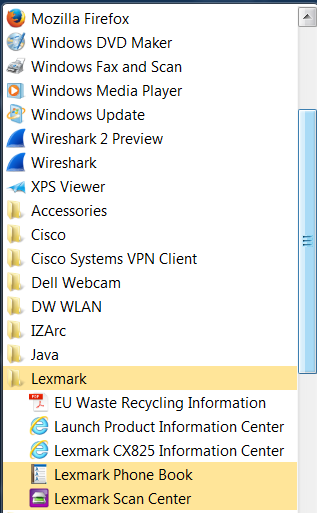
- After the installation completes, theLexmark Scan Centerwill appear in the Startup menu.Note:The rest of the Lexmark links in this example (i.e.,EU Waste Recycling Info,Launch Product IC,Lexmark CX825 IC, and) are part of the CD driver installation and are not in the common utility package installation.Lexmark Phone Book
Uninstalling the Common Utility Package v2.0.0.0
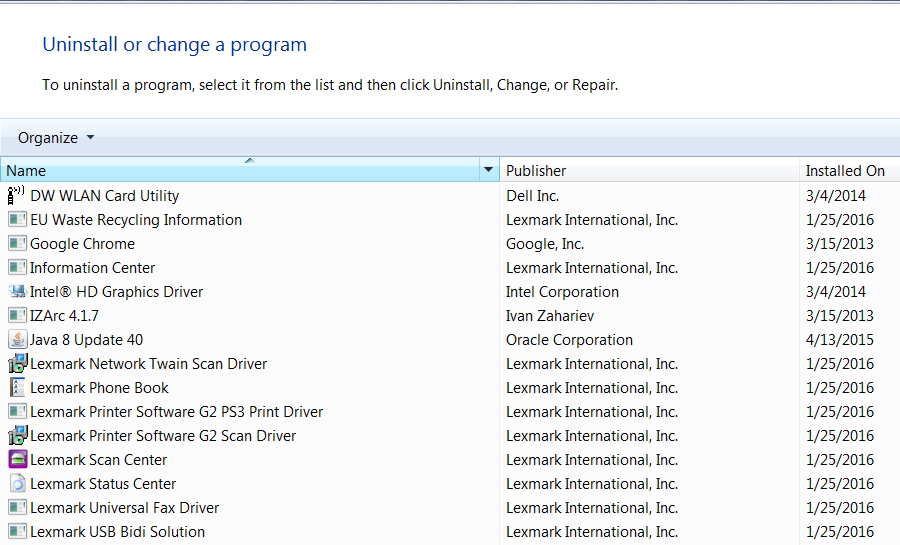
To remove Lexmark Scan Center, Lexmark Status Center, and Lexmark Network Twain Scan Driver, use the uninstall function in the
Control Panel
> Programs and Features
list.
- Programs and Features Menu
LEGACY ID:
SO7820