`24x.13 or a 24x.18? Paper Jam Error Messages Due to One of the Paper Trays on the Lexmark CS310, CS410, CS510, CX310, CX410, and CX510
`24x.13 or a 24x.18? Paper Jam Error Messages Due to One of the Paper Trays on the Lexmark CS310, CS410, CS510, CX310, CX410, and CX510
Overview
When printing from one of the paper input options (i.e.,
Tray 2
, Tray 3
, etc.), the printer displays a '24x.13
' or a '24x.18
' type paper jam message on the operator panel (where 'x
' can be any number; i.e., 242.13
, 243.18
, etc.). The paper stops shortly after feeding from one of the paper trays.
NOTE:
Select the Show areas
feature on the control panel to view images that will help you locate and clear the jam. Once the paper path is completely cleared of all jammed paper/media, the printer should resume normal printing.
Understanding jam numbers and locations
When a '
24x.13
' or a '24x.18
' jam occurs, a message indicating the jam's location appears on the display. The associated numeric error code is normally one of the following: 242.18
or 243.13
.
The following table lists the '24x.13
' or a '24x.18
' paper jams that can occur, and the location of each jam:
Jam Numbers
| Area
| Click Image to Enlarge
|
242.13 ( 1 ) | Optional Input Tray | 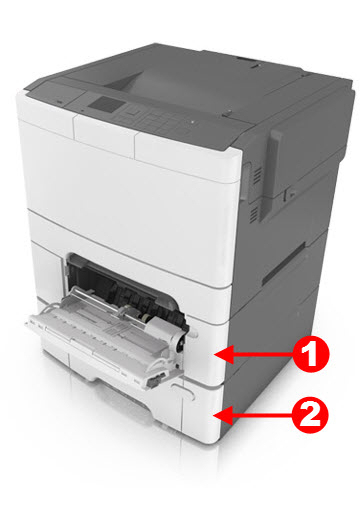 |
242.18 ( 1 ) | Optional Input Tray | |
243.13 ( 2 ) | Optional Input Tray | |
242.18 ( 2 ) | Optional Input Tray |
NOTE:
Optional Input Tray
can be a 550 Sheet Input Options
or a 650 Sheet Input Options
.
Troubleshooting
Steps
| Actions
|
1
| Try to locate and remove the jammed paper. Be sure any previous jams have been completely removed; and refer to 24y.xx Paper Jam Removal .
Note: If this print job consisted of more than one page, probably more than one page is stuck inside the printer. Follow all the steps in the link above and confirm that the entire paper path is clear before attempting to print again. |
2
| Be sure that the paper of the affected paper tray (could be any input source) is loaded correctly and not overloaded; please refer to. |
3
| If the paper in the printer shows signs of excessive wrinkle , crease , or dampness , is bent or wavy , or has ream glue or curl , there is probably too much moisture in the paper. Replace the paper in the printer with new paper from an unopened ream. |
4
| If issue persists after performing the steps mentioned above, an issue may exist within the machine's hardware. Please contact Lexmark Technical Support for other troubleshooting suggestions. |
Contacting Lexmark
Please contact
Lexmark Technical Support
if you need additional assistance.
NOTE:
When calling for support, you will be asked for your machine/model type
and serial number
(SN
). If you need help locating your printer's model type and serial number, how-to-locate-the-serial-number-tli-config-id-and-.html#how-to-locate-the-serial-number-tli-config-id-and-machine-type-on_HO3870.
Please call from near the printer in case the technician on the phone asks you to perform a task involving the printer.
LEGACY ID:
SO7183