200.05 Paper jam error messages
`200.05? Paper Jam Error Messages on the Lexmark CS310, CS410, CS510, CX310, CX410, and CX510
Issue description
A
200.05 Paper Jam
error message appears on the printer control panel display. The error indicates that the printer has registered a paper jam in or around Tray 1
or the Front Door
.Solution
- Be sure any previous jams have been completely removed and refer to200.xx Paper Jam Removal.
- Make sure that the affected paper tray (could be any input source) is loaded properly.
- Donotmix paper/mediasizes,weights, ortypesin the same source; such mixing results in jams.
- Visually inspect thepick tires(or feed rollers) of the paper pick assembly to see if they are worn, contaminated, or pulled off the hubs (tire/hub orientation is critical). If the pick tires are worn out or contaminated, find theT-shaped pick arm assemblyand carefully remove each of the two rubber pick tires. See image below.
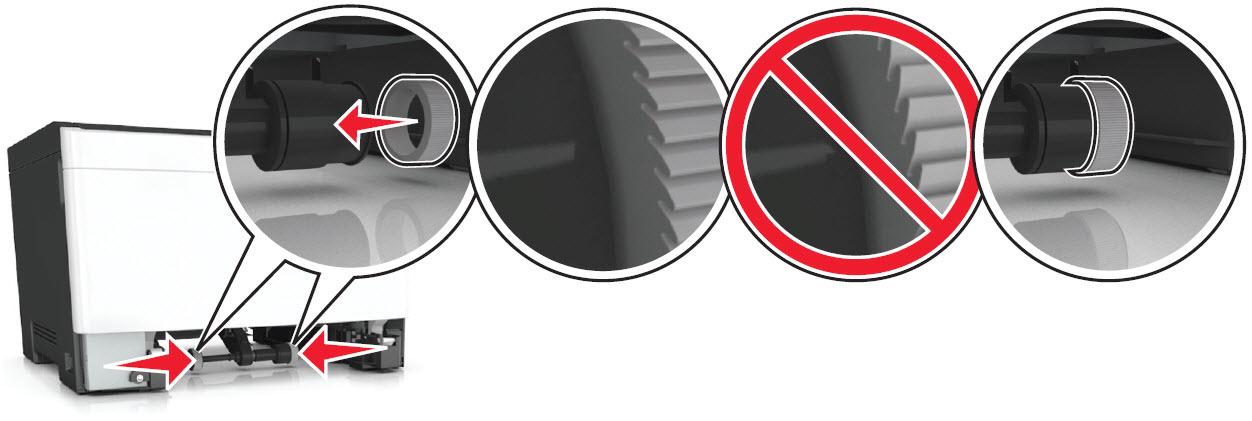 If you have an extra set of pick tires, please use them to replace the old ones. In case you don’t have any extra pick tires, try re‑seating the tires or clean them with alcohol wipes to remove any contamination.
 - If the paper in the printer shows signs of excessivewrinkle,crease, ordampness, or if the sheets arebentorwavy, or haveream glueorcurl, there is probably too much moisture in the paper. Replace the paper in the printer with new paper from an unopened ream.
- If issue occurs with a duplex print job (double-sided printing), ensure that the output bin is empty. Also closely monitor how much paper exits the printer when sending large print jobs using any media narrower thanLetterorA4(more than15 pages). Remove media from the output bin before the stack height becomes too tall, and before any subsequent duplex document printing to avoid any jam.
- If issue persists after performing the steps mentioned above, an issue may exist within the machine's hardware. Please contactLexmark Technical Supportfor other troubleshooting suggestions.
LEGACY ID:
SO7166