Troubleshooting 24x.42 paper jam
Troubleshooting 24x.42 Paper Jams for Lexmark MS71x, MS81x, MX71x, & MX81x
Issue description
The printer posts
24x.42
paper jam (where ‘x’ denotes the tray number) as the sheet stops in the tray pass-through. See the following images:Leading edge of sheet stopped in tray pass-through
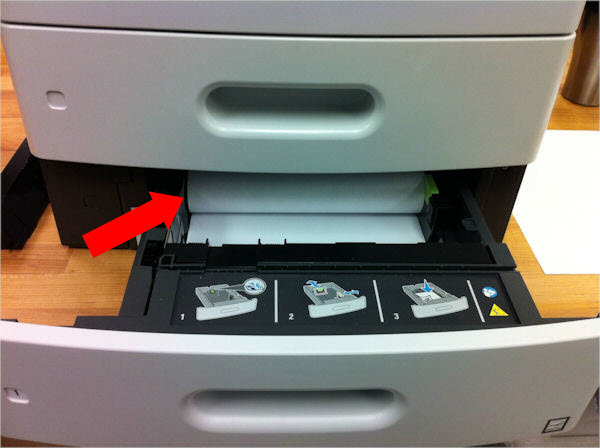
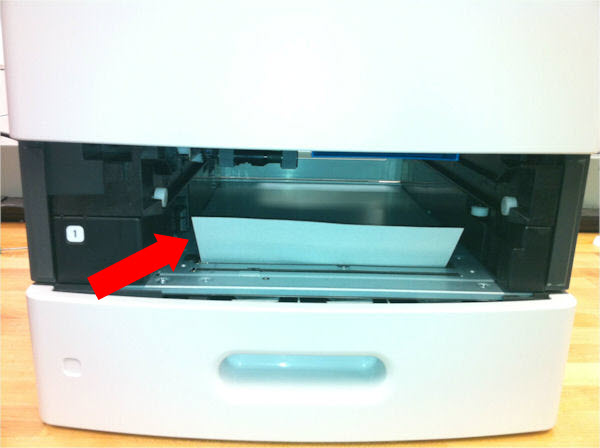
A
242.42
error code is not technically a paper jam because this error is posted when the speed of the pick motor in Tray 2
stalls while trying to pick a sheet. There may (or may not) be a jammed sheet to actually clear; often the sheet will never make it out of the tray. Sometimes you can just open and close the tray and it will pick the next time.Solution
Follow the recommendations below to avoid or minimize the occurrence of
24x.42
paper jams.The type of media being used
- Verify from the printer’sUser Guidethat the type of media is supported.
- If using cardstock or labels, verify whether the media meets all recommendations stated in theCardstock & Label Guide.
Proper media loading
- Make sure the tray is not overfilled. Use the level indicator found in the tray.
- Verify that theMedia Size & Type Settingmatch the actual paper size & type loaded. For recurring errors, however, try changing Tray 2 Paper Type to Labels even if the media loaded is not a label. This provides enough time for the printer to pick the media.
- Make sure the tray guides are set correctly and that the media stack corners are straight and sheets are aligned.
- Check the media edges and make sure that none are damaged or no sheets are locking together.
- Fan the media and check that nothing is causing sheets to stick together.
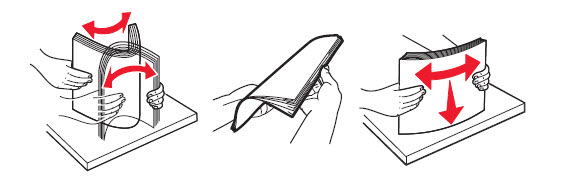
- Make sure to lay the paper flat in the tray and that no sheets are 'shingled' within the stack. An example of this is shown below.
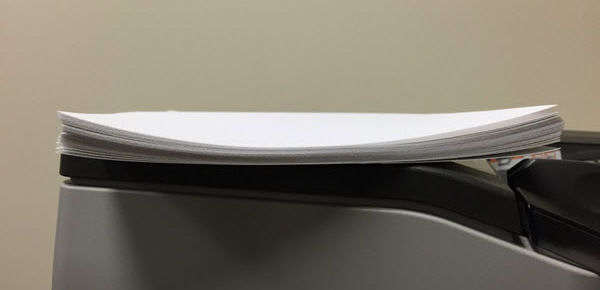
- Make sure the paper is flat and not wavy, curled or damaged. The sample image below shows a stack of paper that is curled upwards. If this is how the media looks like when placed in the tray, flip or replace the media.
Pick tires not touching the media
- The media must be flat to ensure that both pick tires are firmly in contact with it and in the correct pick position. You can verify this by looking at the rear side of the tray.
- The dog ear jams (right-hand image above) can be seen clearly in the tray pass-through rolls as shown in the image below.
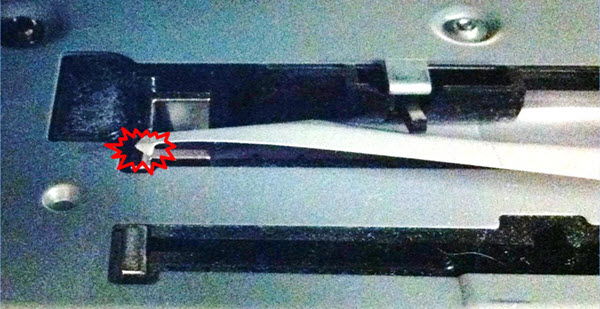
The tray with the pass-through where sheets jam
- Check thepass-through slotfor debris or obstructions(A).
- Try reseating theseparator bracket(B).
- If jams continue, their cause may be the rolls in the tray pass-through.
- Try swapping trays. If the jams follow the tray pass-through, contact Lexmark Technical Support and request replacement of the tray.
LEGACY ID:
SO7153