How to update the printer firmware using the Firmware Update Utility
How to Update the Printer Firmware Using the Firmware Update Utility
Overview
Firmware Update Utility
(FUU
) is one of the methods used to update the printer firmware. This can be performed via any
of the following connection types; local
(USB
), ethernet
, or wireless
.Firmware update is essential to optimize the printer’s performance. However, this procedure should only be performed when
Lexmark Technical Support
has recommended a firmware update. Recommendations will be made by a technician if a printer function or printing anomaly is known to be corrected by updating the printer firmware. Before you begin
Do the following
before
updating printer firmware:- Make sure that printer is in a “READY” state, and no error codes or messages are displayed on the printer screen.
- Double check for anyoption cardsinstalled on the printer; should the printer have an option card installed, please check whether there is an updated firmware version for the said option card and make use of that instead.
Do
not
update code if you are unsure about the presence of special code
or code
that is specific to a Downloadable Language Emulator
(DLE
). For more information, contact Lexmark Technical Support
.How to download the latest Printer Firmware
Plese refer to “Firmware Update Instructions” for steps on how to download the latest printer firmware.
Procedure
Follow the steps below to update the printer firmware:
Step | Action |
|---|---|
1 | Run the Firmware Update Utility and click Continue .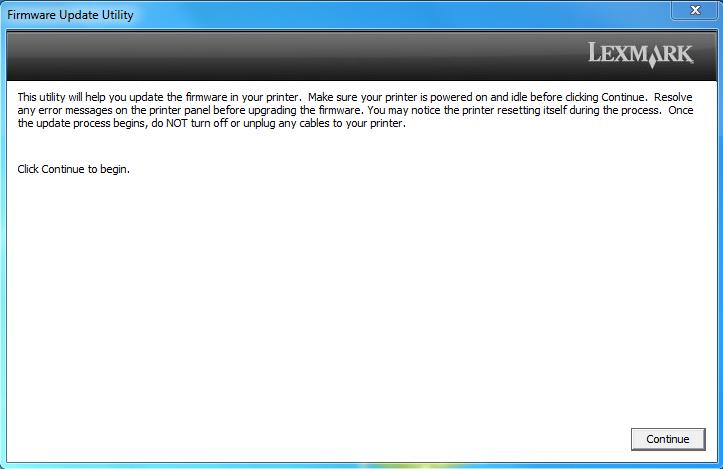 |
2 | Read through the License Agreement and click Agree to continue.Click on Disagree if you do not want to proceed.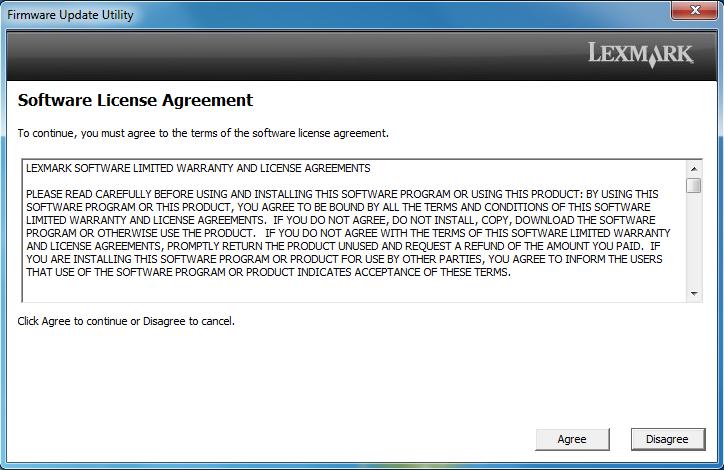 |
3 | The Utility should display the printer(s) connected. Choose the printer you want to update and click Continue .If you know the printer's IP Address , you may enter it manually via the "Add Printer by IP Address " button.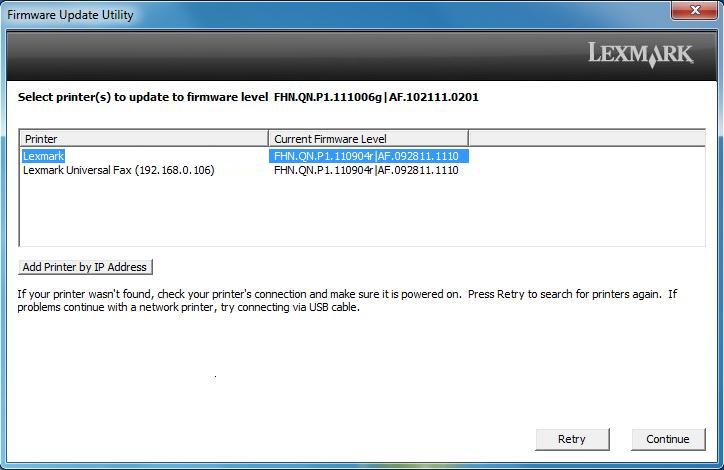 |
4 | As soon as the update starts, a progress bar will display on the computer and your printer panel should show “ Updating Firmware ”.Do not turn the printer off until the update is complete.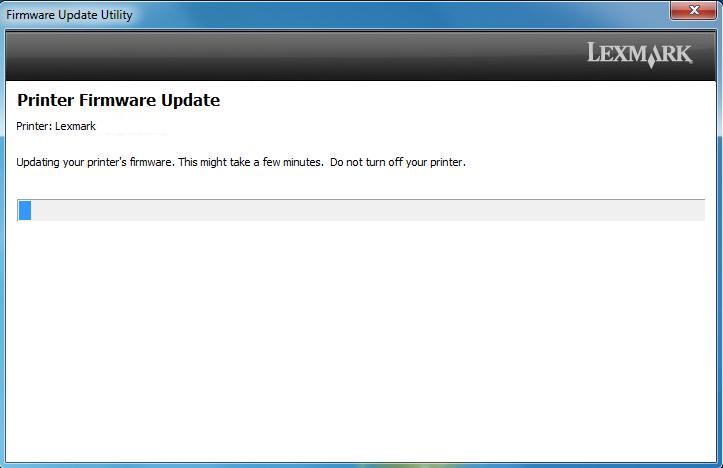 |
5 | When the update is completed, the utility will post “ Firmware Update Summary ” and the printer should power off and restart automatically.Click “ Retry ” if the update failed and needs to be performed again. Click “Close ” if the update was successful.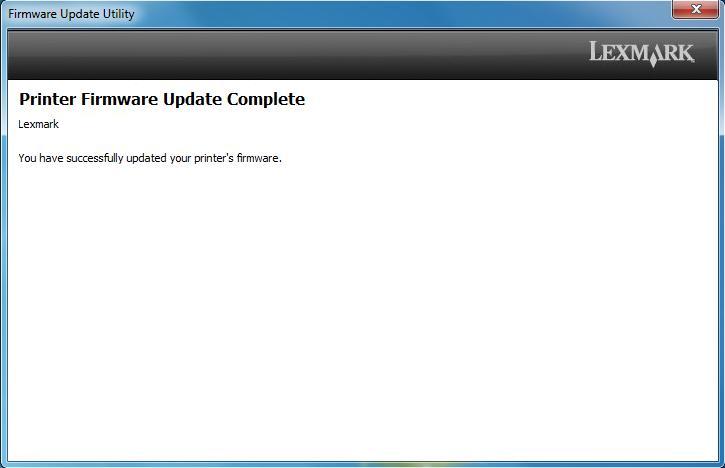 |
LEGACY ID:
SO8784