Secure Held Print Jobs Icon Does Not Display on the Control Panel After Installation
Secure Held Print Jobs Icon Does Not Display on the Control Panel After Installation
What you will see
The
Secure Held Print Jobs
(SHPJ
) icon does not
appear on the printer’s control panel after installing the app. This only
happens when no
other apps are running during the installation.Solution
Performing these troubleshooting steps below will fix the issue.
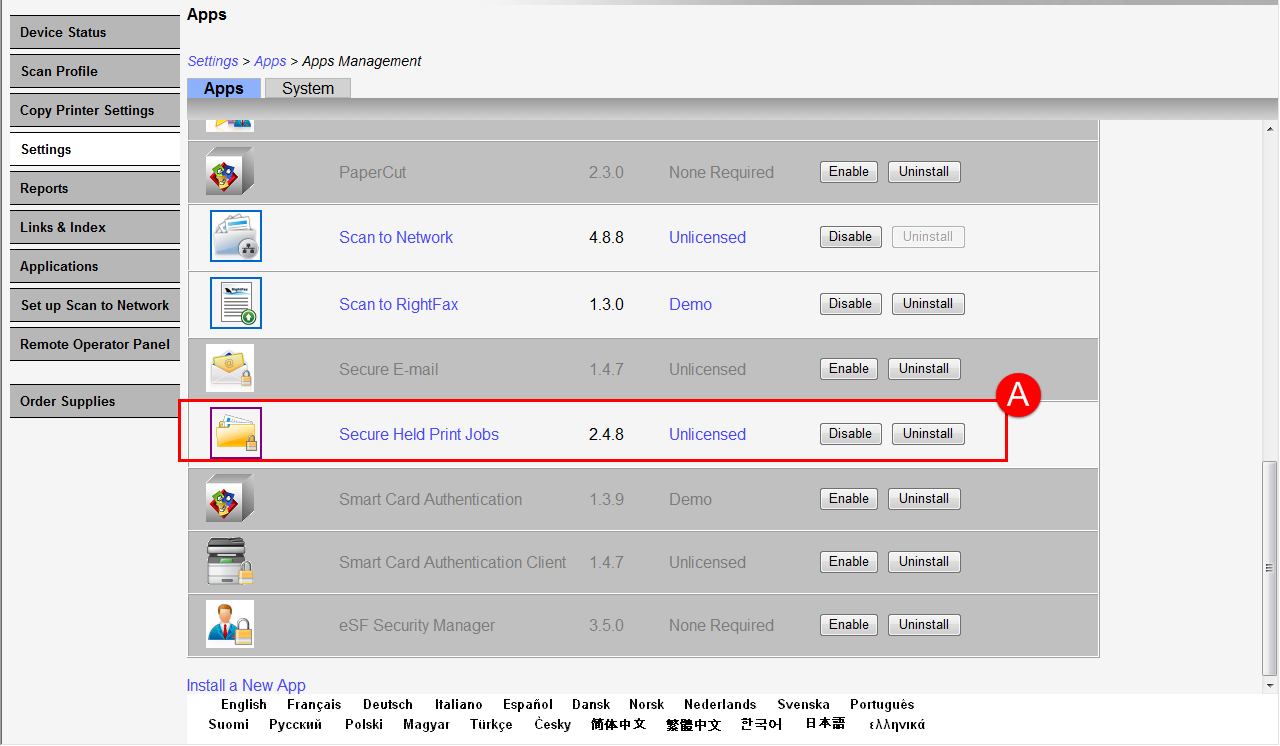
1. | Ensure that the Secure held jobs app is enabled or in running state by accessing the printer’s embedded webserver (typing printer IP on a web browser) Settings >Apps >Apps management (A). |
 | |
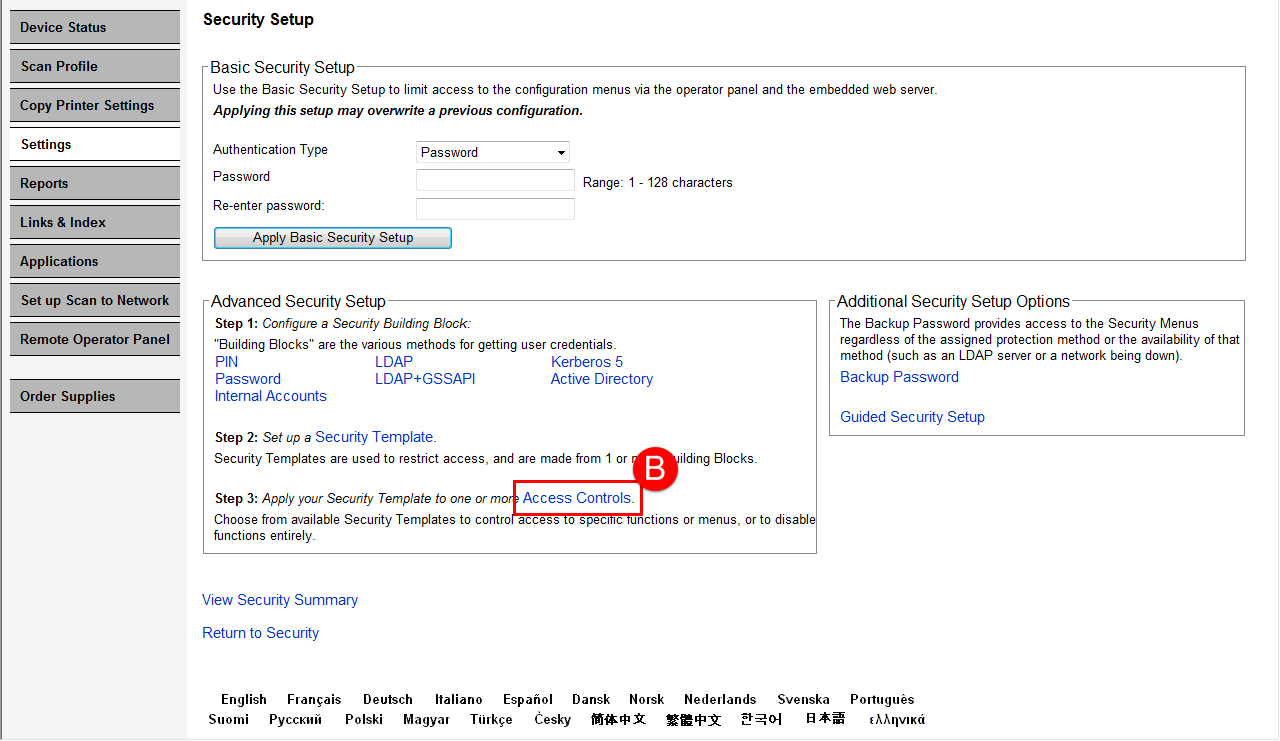
2. | Access the printer’s embedded webserver (typing printer IP on a web browser) Settings > Security > Security Setup > Access controls (B) > and then expand the Device Apps folder to check whether the Secure held jobs app is not disabled (C). |
 | |
3. | Should the app icon still be missing on the control panel after performing the steps above, check the current app’s version (refer to the same image (A) above to check app version) and then update it to a higher version. |
Please contact Lexmark Technical Support for further assistance. | |
4. | Update the printer's firmware to the latest one if issue still persist even after installing the new app version. |
You may go to our website, support.lexmark.com, to download the latest printer firmware. NOTE: Once you obtain the file, you may proceed and update the firmware by following the steps from this link Updating the Lexmark printer firmware. | |
5. | Should issue still persist, please contact Lexmark Technical Support for additional troubleshooting. |
LEGACY ID:
SO7719