Partially missing single color plane
Lexmark CX/CS72x and XC/C41xx: Print Quality Diagnosis: A Single Color Is Partially Missing After Printing a Document
Issue description
When a user prints a document, they have observed that a color is partially missing. They have also noticed that the prints have a jitter pattern from the color which is partially missing.
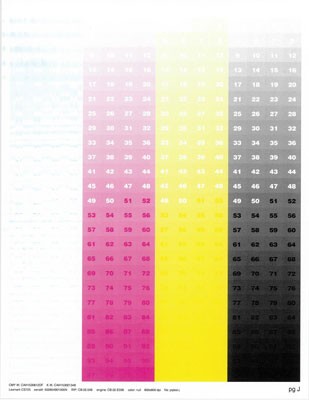 | 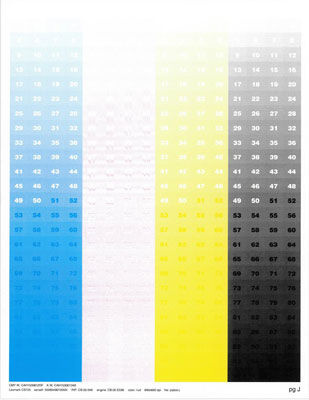 |
Partial Missing Cyan | Partial Missing Magenta |
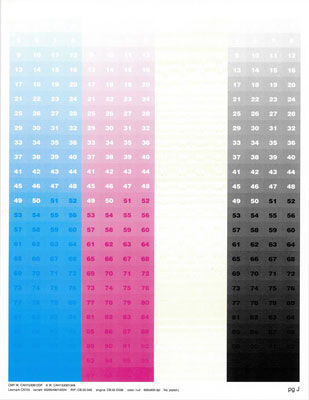 | 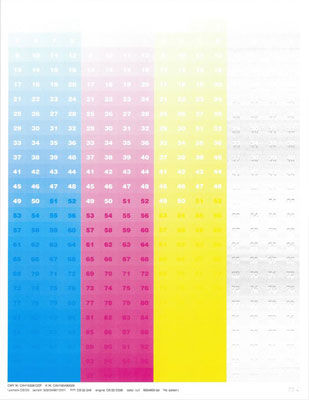 |
Partial Missing Yellow | Partial Missing Black |
For issues related to all three
colors partially missing
, please click here.Solutions
- Open doorB. Click the link below to see image on how to open doorB.
- Open doorA. Click the link below to see image on how to open doorA.Note: Hot surface!The inside of the printer is hot. To reduce the risk of injury from a hot component, allow the surface to cool before touching it.
- Check the printhead and use a lint-free cloth to wipe the lenses(A); make sure to check for any toner debris.
- After cleaning the printhead, check the Oldham couplers(A)for any issues (such asmissingordamaged) parts.Note:If any of the Oldham couplers are damaged, please contact Lexmark for further Troubleshooting.
- Re - install the imaging kit, and insert the waste toner bottle then closeDoor AandDoor B.
- Perform a test print and check if the issue persists. If the print quality issue still present,replace the Imaging Kit(Cyan,Magenta,Yellow, orBlack) of the affected color.
LEGACY ID:
SO8683