Lexmark Scan Center: Unable to Recognize USB Scan Driver on Microsoft Windows Server 2012
Lexmark Scan Center: Unable to Recognize USB Scan Driver on Microsoft Windows Server 2012
Affected Products:
Solution: Lexmark Scan Center
Issue Description:
When using the
Lexmark Scan Center
application, you will be required to install a scan driver in your computer. Upon installation of the USB scan driver
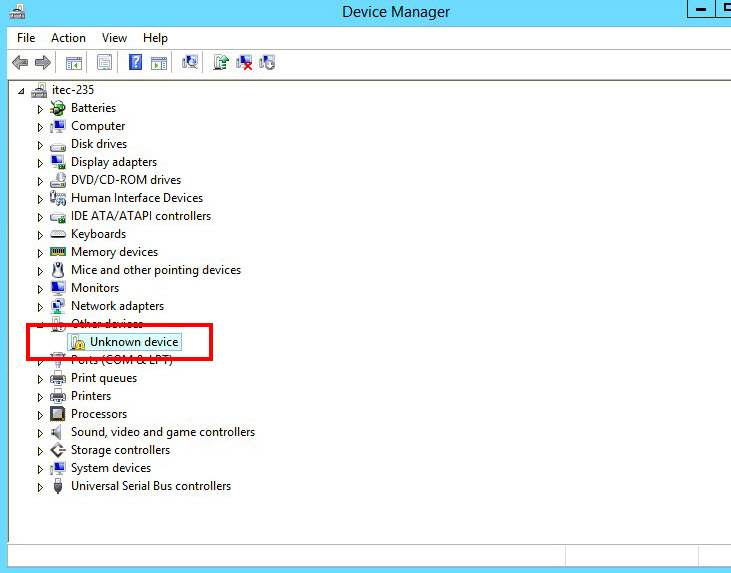
on the computer, the computer’s Device Manager
is unable to recognize the driver by showing an error that the scanner is an unknown device
. In this sample screen shot below, the error message is outlined in
red
:
NOTE:
This issue happens only for a locally connected
Lexmark printer on a Microsoft Windows Server 2012
computer.
Solution:
In activating or installing the
Desktop Experience
feature on the server, it will enable Scan and Image Acquisition
usage that will rectify the issue. The following steps will guide you about how to install Desktop Experience
.
- Click theStartbutton, selectAdministrative Toolsand then clickServer Managerto add features on your computer.
- ClickFeaturesin theServer Managerto see the details. Then clickAdd featuresunderFeatures Summaryfor theAdd Roles and Features Wizardto start.
- SelectDesktop Experiencein theFeatures'list and clickInstallto proceed with the installation. In this sample screen shot below, the options are outlined inred.

- Open theLexmark Scan Centerand scan a document to check if it works and successfully scans.
- Should issue persist, please contactLexmark Technical Support Centerfor further assistance.
Still Need Help?
Have the following available when calling Lexmark Technical Support;
- Printer model(s)
- Printer serial number
- Name and version of the solution
If you need help locating your printer model and serial number,
.
LEGACY ID:
SO7965