Scan to Network Folder Custom Icon Does Not Work
Overview
On the printer’s Embedded Web Server (EWS) configuration page,
Scan to Network Folder
(SNF
) allows you to configure the application with two possible custom control panel icons.How to set Custom Icon and Icon When Pressed via EWS
Step
| Action
| Click Image to Enlarge
|
1
| Open the printer’s Embedded Web Server (EWS ).http:// <MFP_IP_Address >, where <MFP_IP_Address > is the printer's IP address. | 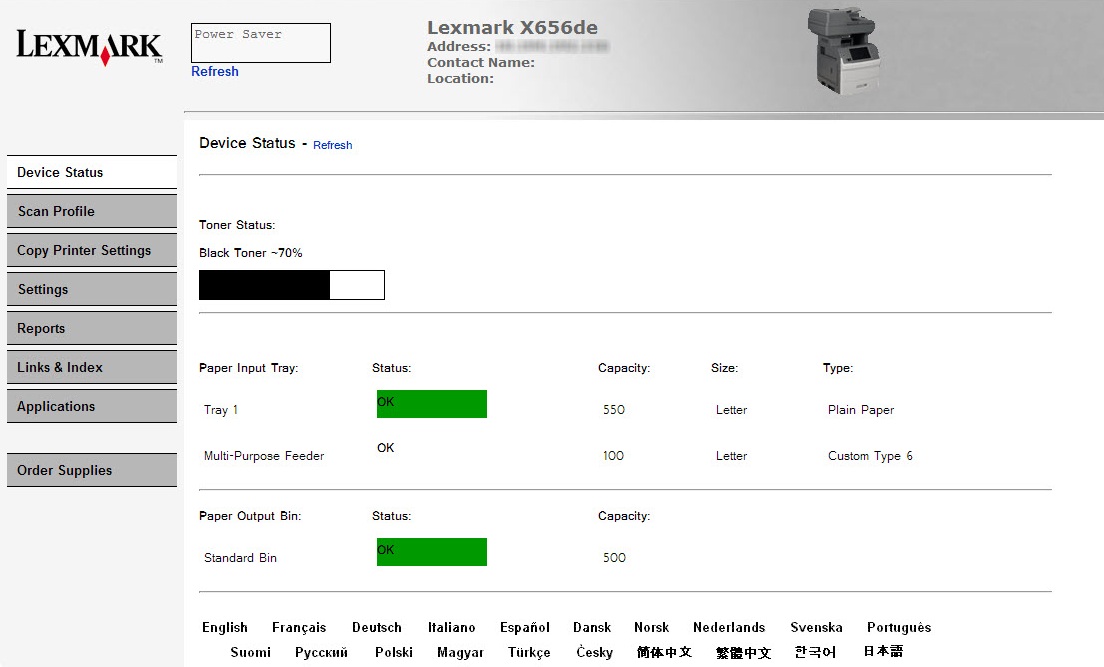 |
2
| Click Configuration or Settings , and then Embedded Solutions . | 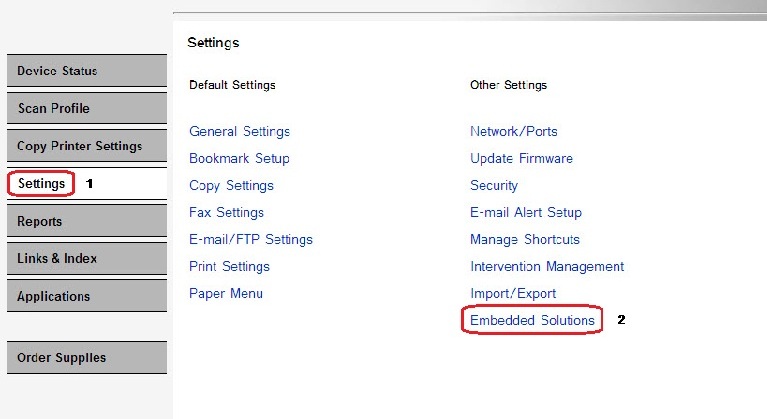 |
3
| Click on the Scan to Network (SNF ) embedded solution. | 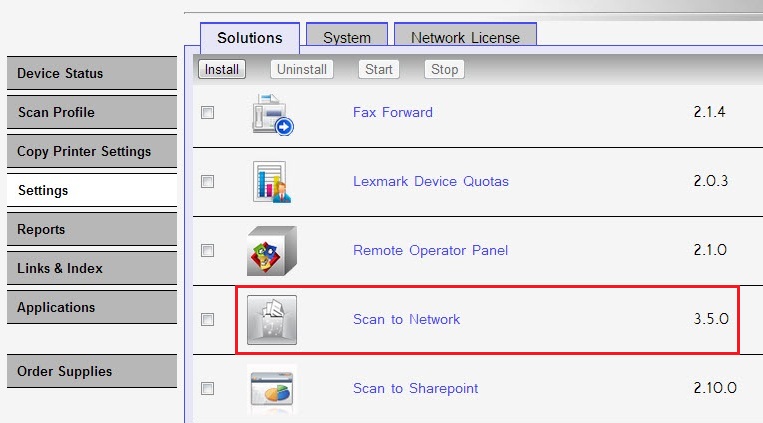 |
4
| Click Configure . | 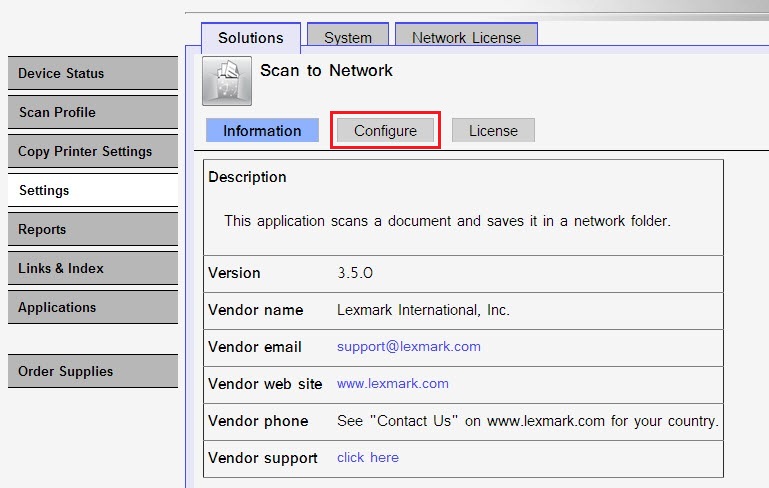 |
5
| Select Custom under “Icon and Icon When Pressed ”. | 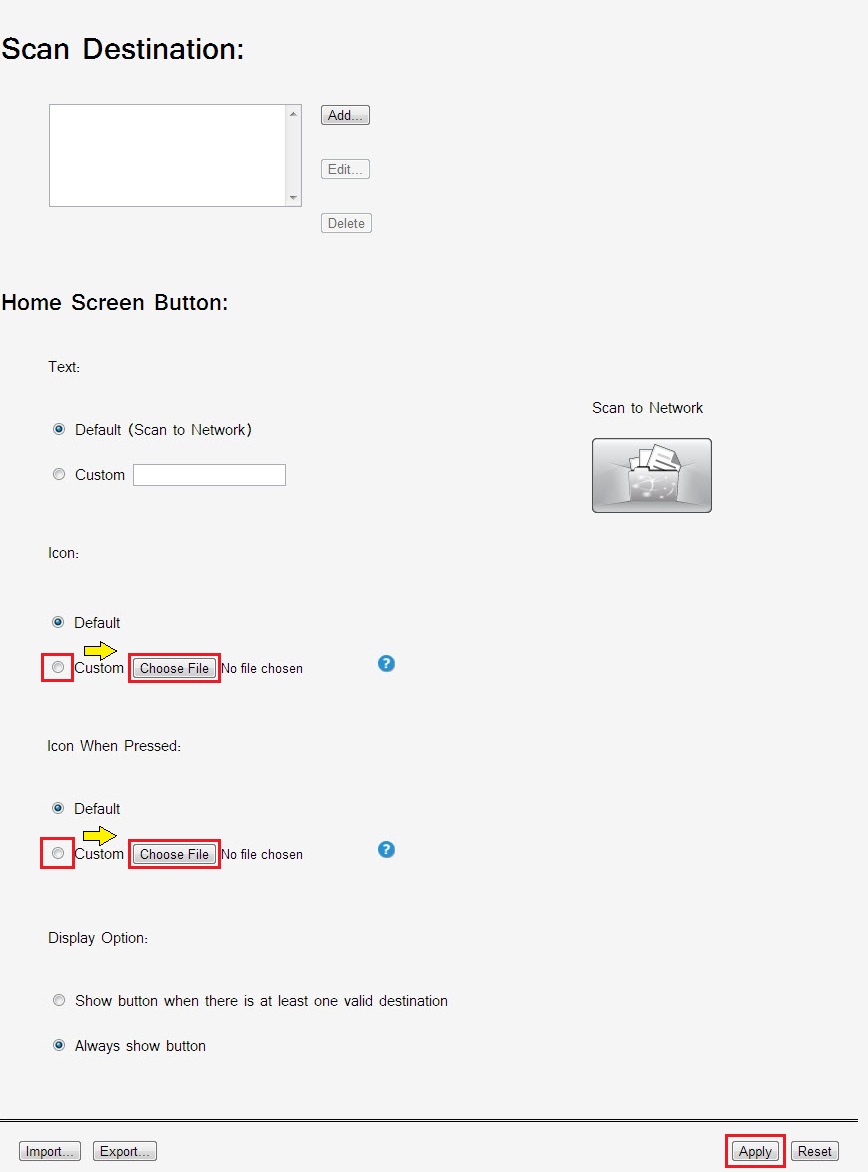 |
6
| Click Choose File to specify the desired icon to display for each selection.
Note: Make sure to use file size less than 11 KB to avoid errors. | |
7
| Click on Apply . |
Two Possible Custom Control Panel Icons
1.
Icon
– The “icon” that is readily seen on the control panel.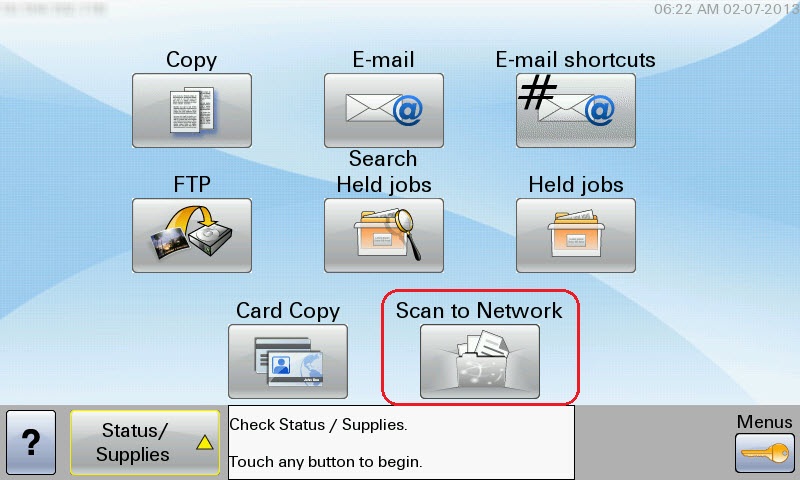 |
Click Image to Enlarge
|
NOTE:
If the button for Scan to Network Folder has disappeared from the MFP control panel, the-button-for-scan-to-network-has-disappeared-fro.html#the-button-for-scan-to-network-has-disappeared-from-the-mfp-control_SO6409.2.
Icon When Pressed
– The “icon” that will appear briefly when the button is selected or touched.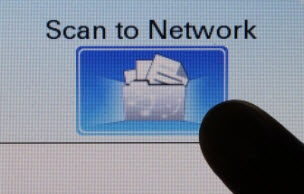 |
Click Image to Enlarge
|
What you will see
When using
SNF version 3.5.0
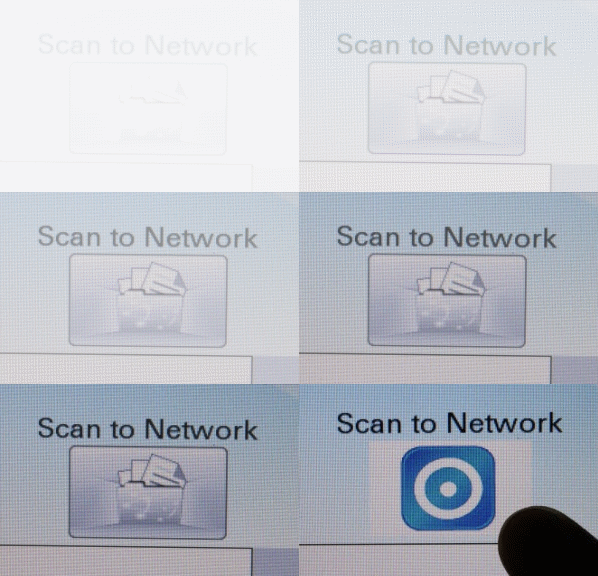
, customizing the control panel “Icon
” does not work. It will show the default icon instead of the custom selection. The “Icon When Pressed
” works fine.Incorrect Display
| Correct Display
|
 |  |
Troubleshooting
This concern is fixed in
SNF version 3.5.5.
Please contact Lexmark Technical Support
to obtain the updated SNF application version.Still need help?
Please contact
Lexmark Technical Support
if you need additional assistance.
NOTE:
When calling for support, you will be asked for your machine/model type
and serial number
(SN
).Please call from near the printer in case the technician on the phone asks you to perform a task involving the printer.
LEGACY ID:
SO7387