A line is visible when performing Scan to Email
A Line Is Visible when Performing Scan to Email
What you will see
When using the
Scan to E-mail
function the output has a line (could be of any color) across the page. See the following sample of scanned output.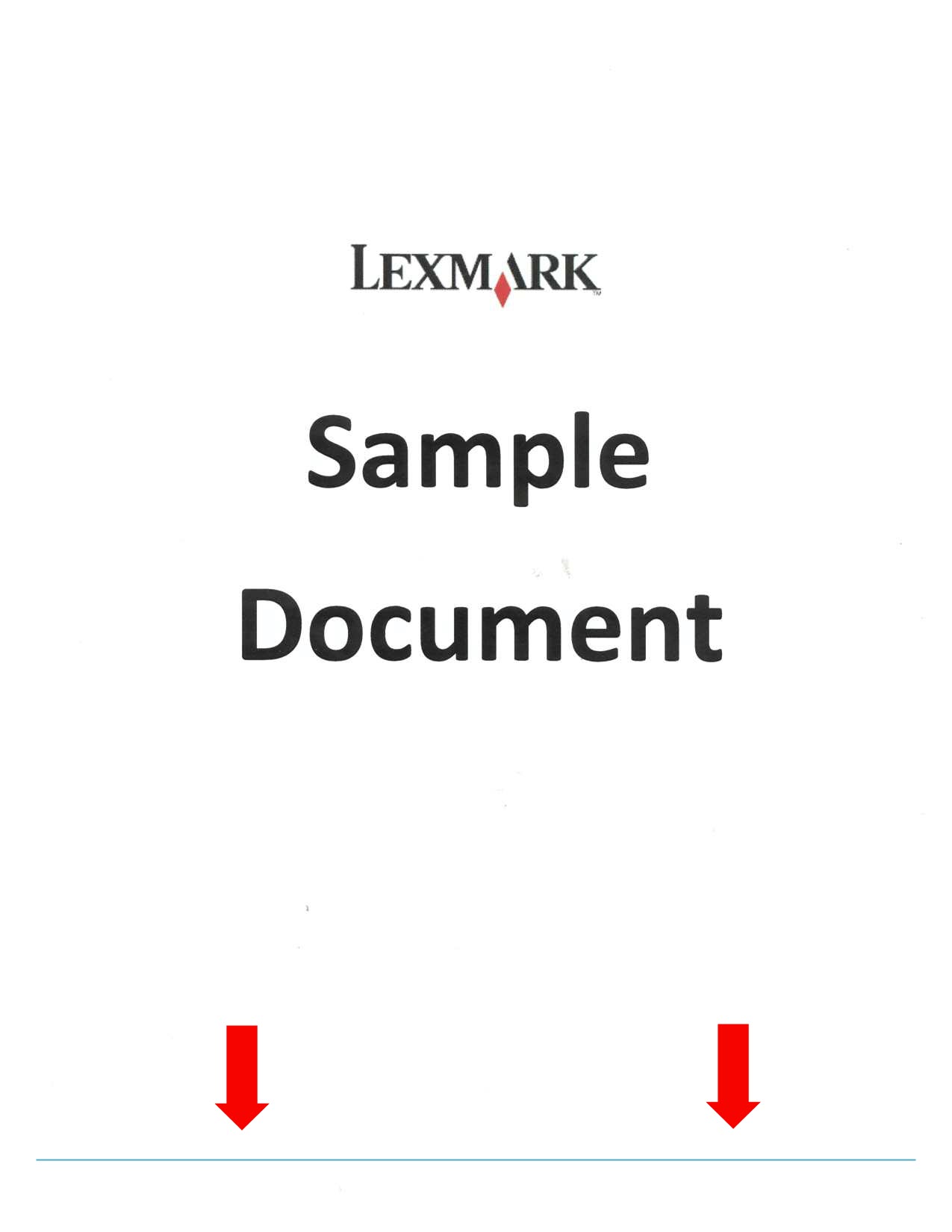
Although the line appears in the Scan to E-mail output, there are no print quality issues shown when printing, sending fax, and performing copies. In addition, the line appears only when performing Scan to E-mail with the “
Colored
” or “Color
” setting turned ON
.Solution
Using the printer’s Control Panel, navigate through
Menu
> Settings
> Email Settings
and do the following in order:Step | Action |
1 | In the E-mail Settings, uncheck the option 'Scan edge to edge '. Perform another Scan to E-mail task and see whether the line disappears. Proceed with the next step if the line remains. |
2 | Adjust Background Removal setting .
|
3 | Use a different output format (i.e., PDF, JPEG, TIFF, XPS).
|
4 | Switch to a different Content Type (i.e., Text, Text/Photo, Photo & Graphics). |
5 | If your MFP allows it, switch to a different Content Source (i.e., Color Laser, Inkjet, Photo/Film, Magazine, Newspaper, Press, Other).Retest and if issue persists, then go to step 6 . |
6 | If the current Resolution setting is 300 dpi, lower it down to 200, 150, or 75 until the line disappears while maintaining an acceptable scan quality. |
You can also perform the preceding suggestions through the printer’s
Embedded Web Server
(EWS
). To do this:Step | Action |
1 | Launch your Internet browser. |
2 | Type the printer’s IP address in the address field. |
3 | Click Settings on the left-hand pane. |
4 | Click Email/FTP Settings . |
5 | Click Email Settings and do the necessary adjustments.Should issue persist even after performing these steps, please contact Lexmark Technical Support for additional troubleshooting suggestions. |
Step | Action | If Yes... | If No... |
|---|---|---|---|
1 | * Important! For steps 1 and 2 , reset/modify the applicable value only. For example, if the issue is only happening when performing scan to email via Flatbed, then there's no need to reset ADF Front and Back values.a. Access the Diagnostics Menu by pressing the buttons 3 & 6 at power-on reset (POR).b. Go to Scanner Calibration and perform Reset Flatbed , ADF Front , and ADF Back calibration values.c. Exit the Diagnostic mode and let the printer restart to normal mode.d. Retest. Does issue persist? | See next Step 2 . | Issue resolved. |
2 | Manually calibrate the scanner values. This diagnostic test is used to calibrate both the black and white values for the ADF and the flatbed .The following values can be adjusted using this menu item: Flatbed Black – Values are -10 to 10. The default value is 0 .
To do this, follow these steps (a-e) :
Does issue persist? | See next Step 3 . | Issue resolved. |
3 | Return to main Diagnostics menu and navigate through: Scanner Tests > and perform the Scanner Calibration Reset one last time.Diagnostics Menu: 3 & 6 at power-on reset (POR). | See next Step 4 . | N/A. |
4 | Exit the Diagnostics menu let the printer restart to normal mode. Perform a test with a Scan to E-mail job to see whether the issue is resolved. Does issue persist? | Escalate to the Lexmark 3rd level Support team. | Issue resolved. |
LEGACY ID:
SO7654