Email transmission error codes and recommendations
Get email transmission error codes and recommendations here.
Issue description
An
Email Transmission Failure
message is displayed on the printer control panel, followed by a printed Scan Log
.This article shares some of the possible causes for the error codes depicted on the Scan Log.
Not all Lexmark multi-function printers support email authentication. If your printer
does not
, contact your Email Service Provider
(ESP
) to see other available options. You may have to perform a scan-to-pc if so.Common "Scan Log" error codes
Error code | Possible incorrect email configuration settings | Recommendations |
|---|---|---|
Connection Failure: <-7> Connection Error | Incorrect Port | Enter a different port number and test again. Common ports include 465 , 587 and 25 . |
Connection Failure: <-10> Email Server Not Set up. |
|
|
Connection Failure: <-11> Cannot resolve server address. |
|
|
Connection Failure: <-19> | Incorrect Port or SSL/TLS setting | Contact your ESP and verify SSL/TLS and Port combination, and test again. |
Connection Failure: <-22> SSL certificate validity has a future date. | The configured Date and Time are inaccurate. | Update and set the correct date and time on the device. In the control panel , go to Settings > Device > Preferences > Date and Time > Configure . |
Connection Failure: <-52> Error sending to an email connection failure -52 self time certificate. | Validate CA has been checked. | Uncheck the " Validate CA " tickbox.Access printer EWS > go to Settings > Email/FTP Settings > Email Settings > Setup Email Server > clear Validate CA |
Connection Failure <504> | SMTP Server Authentication set to "NTLM" | Unrecognized Authentication Type . Change Authentication to applicable Plain/Login or None . |
Connection Failure: <530> |
|
|
Authorization failed <534> | N.A. | Enable your Gmail account access for less secure apps. To do so: |
Connection Failure <535> | Username and Password not accepted. | Change username and Password and test again. Again, some ESPs require full email address (hello@yahoo.com) and others require only the beginning Userid (hello) portion of the email address.Passwords are sensitive to spelling, capitalization, and the use of symbols and characters. |
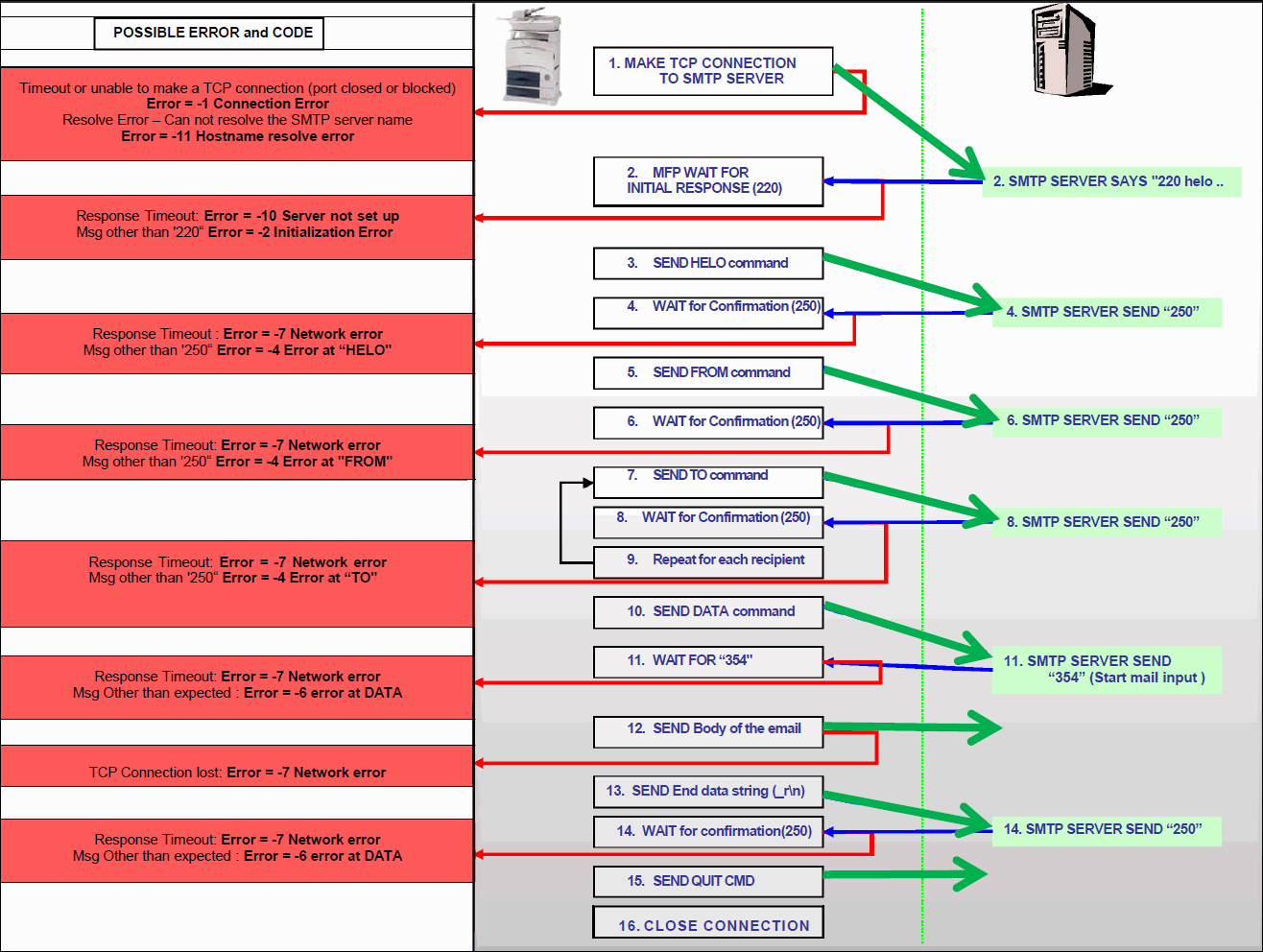
Printer to email server communication flow and email error triggers
The printer initiates communication (
Step 1
) and closes the connection (Step 16
).
LEGACY ID:
SO6867