Exporting or importing the Virtual Configuration Center (VCC) 'Bundle.ZIP' configuration file
How to Export (Or Import) the Virtual Configuration Center (VCC) 'Bundle.ZIP' Configuration File
Issue description
The
Virtual Configuration Center
(VCC
) is a feature component of the device firmware that assists in managing device settings. It allows users to export settings from one device and then import that settings package into a different device. A user can also export a settings bundle, edit that package, and then import the modified settings bundle to a new device.This article explains how to export and import the
VCC Configuration File
. The steps differ slightly between generations of devices so make sure to follow the steps that match the user’s device.The VCC system will provide user feedback as to whether an Import or Export operation was successful or failed. In the event that an issue needs to be escalated with Lexmark's product engineering team, the VCC Configuration File will need to be captured and submitted along with the details of the VCC failure message.
Index:
2016- 2019 Lexmark Devices:
How to Export a VCC Configuration File via Embedded Web Server
Enter the
printer's IP Address
into a browser's address field.
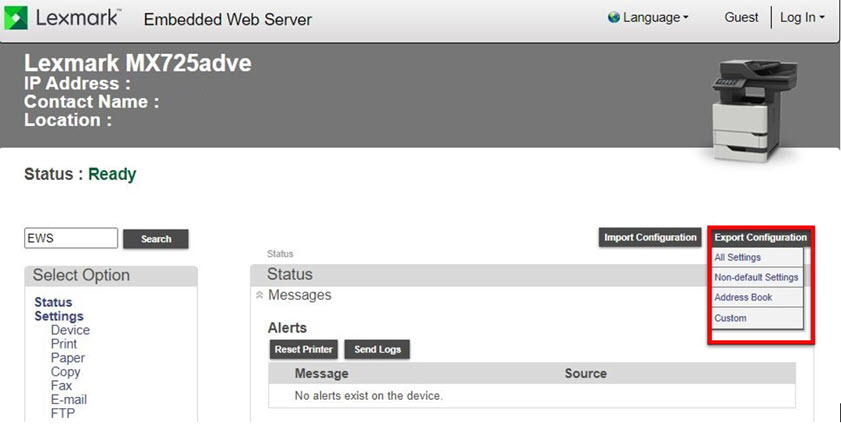
- Click onExport Configuration.
- Click on one of the Export options listed below
- All Settings- this option exports all settings from the device
- Non-default Settings- this option exports only settings that are in a non-default value
- Address Book- this option exports just the entries from the device’s Address Book
- Custom– this option gives the user a sub-menu of selectable settings categories to export.
At this point, depending on how the user’s browser is configured, it will either prompt for where to save the exported settings file (
) or will automatically save it to the browser’s predefined download folder.
export.zip
EWS Illustration
How to Import a VCC Configuration File via Embedded Web Server
a user can import a
configuration file following the same steps below.
*.ucf
Enter the
printer's IP Address
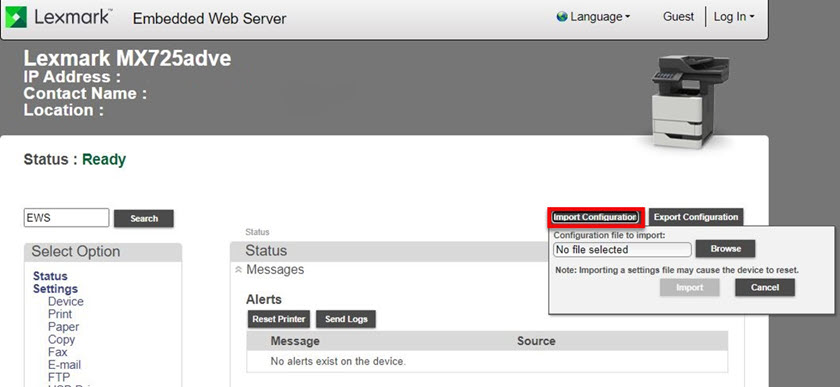
into a browser's address field. - Click onImport Configuration.
- Click onBrowse.
- Find and Select the ‘’ settings file to import.exported.zip
- Click onImport.
- At this point, the device will attempt to apply all the settings defined in the config file to the device. If all settings are properly applied, the user will see an 'Import successfulmessage status.'
EWS Illustration
How to Export a VCC Configuration File to USB Flash Drive
- Insert USB flash drive.
- Go to Home screen.
- Go toSettings>Device>About this Printer.
- Press ‘Start’ next to the ‘Export Configuration File to USB’ option.
- The user will see a ‘Do Not Power Off’ message on the screen while the device creates & saves the configuration file.
- Upon successful completion the user will see an "Export Successful" messageUSB Export Illustration
.JPG)
How to Import a VCC Configuration File from USB Flash Drive
- Insert USB flash drive.
- Go to Home screen.
- Go toUSB Drive.Note:On some smaller touch screen devices, after going to "" the user will see a "USB Drive" and "Scan from USB" screen. Go to "Print From USB" before proceeding toPrint From USBStep 4below.
- Find and select the Configuration File to Import.
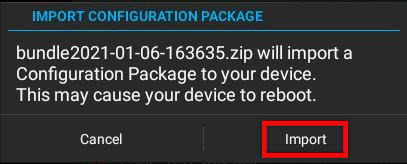
- Press ‘Import’ on theImport Configuration Packagescreen.
- The user will see a 'Do Not Power Offmessage on the screen while the device imports the configuration file.'
- Upon successful completion the user will see anImport Successfulmessage.USB Import Illustration
2012- 2014 Lexmark Devices:
How to Export a VCC Configuration File via Embedded Web Server
Enter the
printer's IP Address
into a browser's address field.
- Click onSettings.
- Click onConfiguration Filesoptions found under theOther Settingscolumn.
- Click onExport.
At this point, depending on how the user’s browser is configured, it will either prompt for where to save the export settings file (
) or will automatically save it to the browser’s predefined download location.
bundle.zip
EWS Illustration
.JPG)
How to Import a VCC Configuration File via Embedded Web Server
Enter the
printer's IP Address
into a browser's address field.
- Click onSettings.
- Click onConfiguration Filesoptions found under theOther Settingscolumn.
- Click onImport.
- Click onChoose File.
- Find and Select the ‘’ settings file to import.bundle.zip
- Click onImport.
At this point, the device will attempt to apply all the settings defined in the zip file to the device. Once all settings are properly applied, the user will see a
Configuration file successfully installed
message.
EWS Illustration
How to Export ‘bundle.zip’ to USB Flash Drive
- Insert USB flash drive.
- Go to Home screen.
- Go toAdmin Settings.
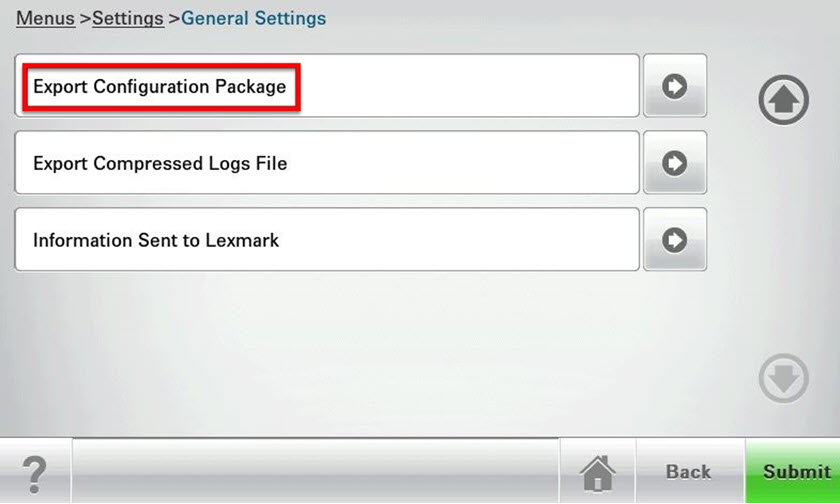
- Go toSettings>General Settings.
- Scroll to bottom and selectExport Configuration Package.
- You will see a ‘Exporting Configuration Package to USB Drive’ message on the screen while the device creates & saves the configuration file.
- Upon successful completion you will see a ‘Export successful’USB Export Illustration
How to Import ‘bundle.zip’ to USB Flash Drive
- Insert USB flash drive.
- Go to Home screen.
- Go toUSB Drive.
- Find and select the Configuration File to Import.
- On the Import Configuration Package screen, selectImport.
- The user will see anImporting Configuration Packagemessage on the screen while the device imports the file.
- Upon successful completion the user will see anImport successfulmessage.USB Import Illustration
.JPG)
File Name
| Contents
| Purpose (Exclusions) |
bundle.xml
|
A compiled list of all settings:
|
Exclusions
|
esf_settings.xml file | Crucial configuration settings for apps | This .xml
|
security_settings.ucf
file (only found on 2012-2014 product generation)
OR
security_settings.xml
file (only found on 2016-2019 product generation)
|
Security settings in universal configuration file ( .ucf
Security settings in .xml
| Exclusions
|
shortcuts.ucf
| Workflow shortcut definitions in universal configuration file ( .ucf
| Allows user to save and import shortcut workflows for Copy, Fax, Email, and FTP from one device to another. |
contactmanager.xml
(only found on 2016-2019 product generation)
| Entries for Address Book contents | Allows user to save and import Address Book from one device to another |
esfApp.fls file | Apps and settings for installed or included apps | Ability to install Apps and not cause the printer to reboot |
license.lic file |
View installed licenses; for example:
<licenses>
<license src= 'license.lic' />
<license src= 'license2.lic' />
<licenses>
|
Confirm installed license for:
Exclusions
|
Additional export information
LEGACY ID:
HO3877