Unable to Connect to LDAP Server Using Windows Server 2012 with SSL/TLS Enabled
Overview
The customer is getting an error
Unable to connect to LDAP Server
when trying to configure Lightweight Directory Access Protocol (LDAP
) in the Lexmark Management Console (LMC
) using Windows Server 2012 LDAP Server with SSL/TLS enabled.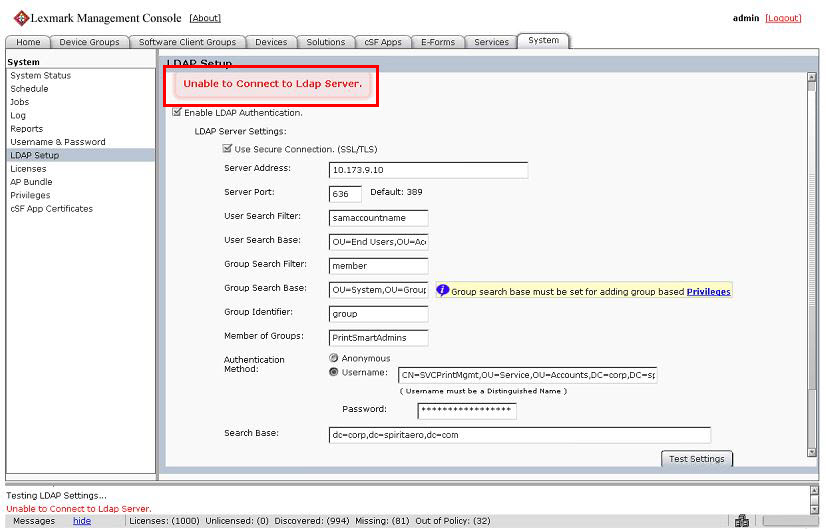 |
LMC LDAP Setup Error using Windows Server 2012 with SSL/TLS |
Solution
To resolve this issue, the certificate(s) of Windows Server 2012 LDAP need to be added in every tomcat/application server.
Step | Action |
1 | Export the certificates (*.cer files) from Windows Server 2012 using Microsoft Management Console ( MMC ), to a folder on the Lexmark Document Distributor (LDD ) server machine. |
2 | Press the Win key + R on your keyboard to open the Run box and open a command prompt window by typing in cmd . |
3 | Go to the LDD Java directory on a tomcat server, which is usually located in C:\Program Files\Lexmark\Solutions\jre\bin , and type;keytool -import -alias %ALIAS%-storepass changeit -keystore ..\lib\security\cacerts -file %FILE_PATH%
For example, %ALIAS% = vg3c3inter , %FILE_PATH% = c:\temp dir\VerisignG3Class3-Inter.cer , and changeit remains as a default:keytool -import -alias vg3c3inter -storepass changeit -keystore ..\lib\security\cacerts -file "c:\temp dir\VerisignG3Class3-Inter.cer" Important! Do this for all of the certificates that were copied. |
4 | To verify whether the certificates were added, run the list command by typing in the following string. keytool -list -storepass changeit -keystore ..\lib\security\cacerts |
5 | Perform Steps 3 – 4 for all tomcat/application servers in the LDD System. |
LEGACY ID:
SO8011