The Message 'Unable to Determine Your Email Address' Is Displayed when Selecting an Email Profile Shortcut
What you will see
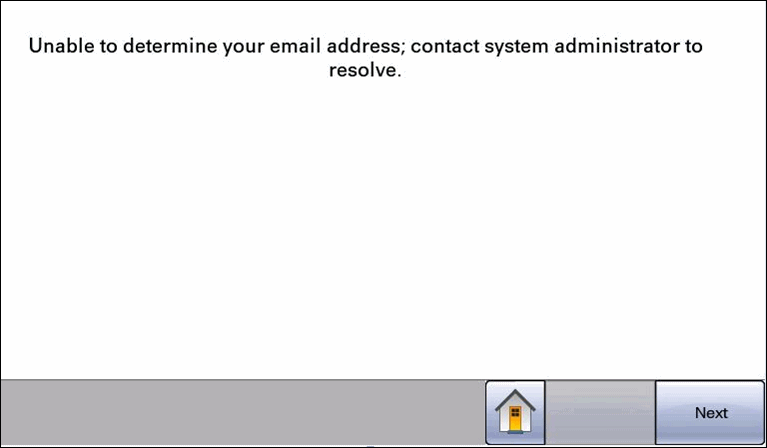
After touching the email icon on a device using Lexmark Print Management (LPM), you see the message, "
Unable to determine your email address; contact system administrator to resolve.
"
Suggested troubleshooting
1
.
Make sure the profile (email icon) is pointing to the correct device LDAP
or print release LDAP
.To do this, first verify the profile (i.e.,
) exists:
Emailtrack
- Open the printer's embedded web server (EWS).
- Navigate toSettings>Manage Shortcuts>Manage Profile Shortcuts.
- VerifyEmailtrackis in the list of profiles. Next, make sure theActionandProfilesettings areconfigured correctlyinLMC:
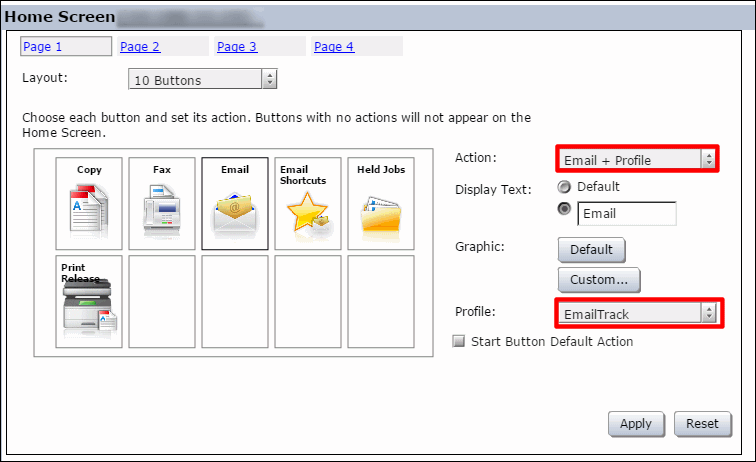
- OpenLMC, and go toDevices>Search device IP>Home Screen>Edit> click theEmail icon.
- Confirm Action:and Profile:Email+Profile.EmailTrackLastly, check LDAP settings based on whether
 e-mailsetting is set to–sourceLDAPorDevice:
 - OpenLMC, and go toSolutions>Print Release>Configurationand check theEmail– From Source setting.If “Email – From Source” is set to...Then...LDAPCheck LDAP settings inPrint Releaseconfiguration.DeviceCheck the LDAP settings ofBadgeAuth eSF,BadgeAuth2 eSForCardAuth esFon the printer.NOTES:The setting "Email–FromSource, will not use the deviceFromaddress on the device in any scenario. When "Email -–From Source" is set todevice, itassumesthat theBadgeAuth eSFapplication isusedand it is configured to look up the logged-in user's email address. If you need to use theFromaddress as configured on the MFP, then you would need toconfigure LPM notto override Email(in the Home Screen configuration set the Email icon as Email, not Email + Profile) and install/configure theDevice UsageeSF application totrack email. This will give you tracking of email and you can use theFROMaddress as configured on the device.
2.
Make sure all LDAP settings are correct; e.g., server communication, port, logins, search base, etc.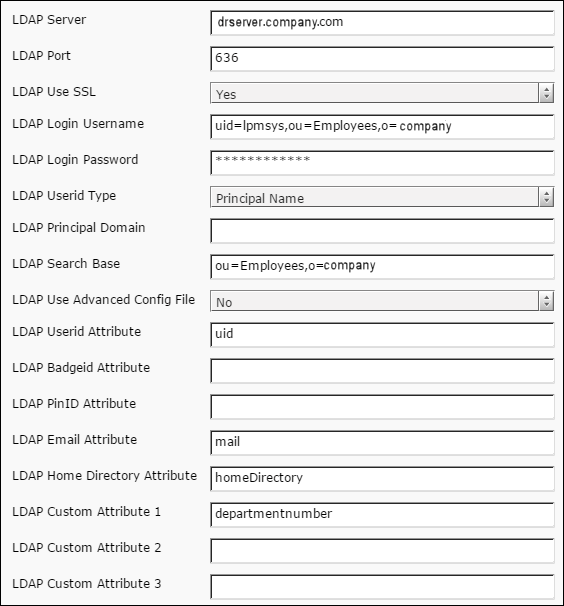
Explanation
This error indicates that an LDAP server exists but it cannot retrieve the user's email address. Reasons are numerous and can include any topic in this article, as well as the server not responding, an incorrect port, certificate not installed, incorrect login password, or search base too broad, etc.
Still need help?
If you need additional assistance, please close this window, go to your product's support page and locate 
Get In Touch with Lexmark!
for contact information.
NOTE:
In order to expedite the support process, please be prepared to provide information regarding your issue, e.g., name and version of solution, problem description, and affected printer models. Additional information may be requested by the support agent.
LEGACY ID:
SO8220