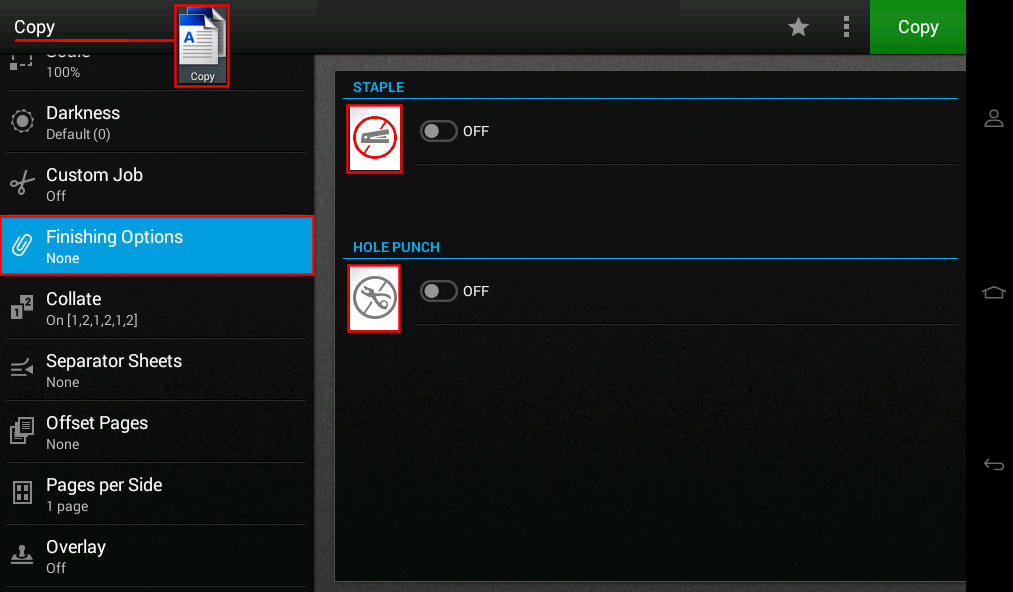
Staple and Hole Punch options are not selectable from the list of touchscreen finishing options
Lexmark CX/CS8xx_72x and XC/Cxxxx: Staple and Hole Punch Options Are Not Selectable From the List of Touchscreen Finishing Options
Issue description
After loading paper into the auto document feeder (
ADF
) and selecting Copy
> Finishing Options
from the Home Screen
, you see Staple
or Hole punch
grayed-out and not selectable.Other functions such as print and fax may also disallow the selection of these finishing options.
Solution
Check the paper orientation or direction of the paper loaded into the tray. If paper is loaded incorrectly, then
Universal
paper size will be detected and thiswill disallowstaple
and hole punch
finishing options.To do this:
- From the Home Screen, navigate to Settings > Paper > Tray Configuration > Paper Size/Type.
- Select your source tray and verify that your paper source is not set toUniversal.
- Proper paper orientation‑ If the paper size showsUniversal, then pull out the paper tray and reload the paper if the orientation of the paper is incorrect. Also, verify that yourpaper-size guidesare pressingagainst the papersince this can also cause incorrect paper-size sensing.
- Incorrect orientation (Paper long-edge is parallel to the printer)
- Correct orientation (Paper long-edge is parallel to the side of the tray)
- After reloading the paper tray(s), go back to:Settings>Paper>Tray Configuration>Paper Size/Typeand verify the proper paper size isindicated.
LEGACY ID:
SO8062