How to Use Job Accounting in Macintosh OS
Overview
Job Accounting
allows you to track print jobs
for accounting purposes by associating the print job with specific account information, including a username or ID
, an account code
, and a department code
. This lets you keep track of how many jobs different users or departments print, and to bill those print jobs to a specific account. In addition, by associating print jobs with specific account information, you can enforce quotas
on the print jobs that users can submit.
NOTE:
Quotas
can be set on the printer and then associated with a specific account.Before you begin
The following
pre-conditions
must be met for Job Accounting to work:- Hard diskmust be installed in the printer.
- "Device Quotas" solution should be installed in the printer.
Procedure
Follow the steps below:
Step
| Action
| Click Image to Enlarge
|
1
| Open a document, and then click File >Print . | No Image
|
2
| From the pop-up menu, choose Job Accounting . | 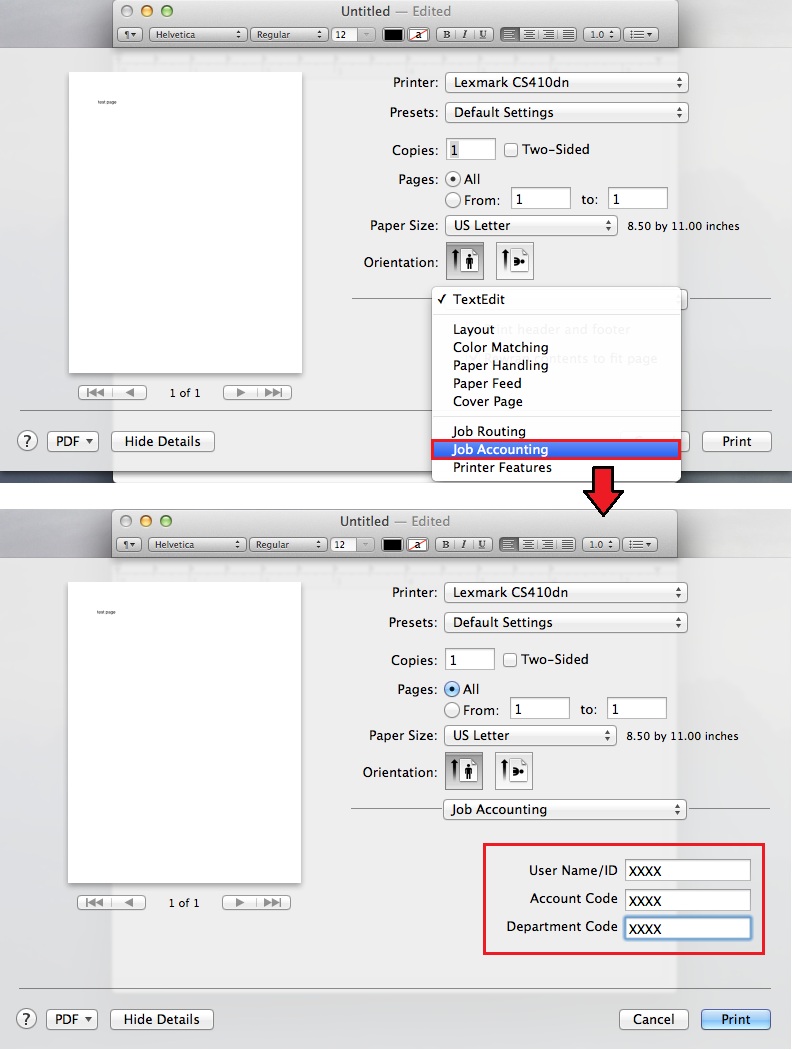 |
3
| In the User Name/ID field , type a valid user name created when setting up print quotas.
Note: By default the user name used is the one that is currently logged in your Macintosh computer. A valid user name must not exceed 64 alphanumeric characters. | |
4
| In the Account field, type a valid account name created when setting up print quotas.
Note: A valid account name must not exceed 32 alphanumeric characters. | |
5
| In the Department field, type a valid department name created when setting up print quotas.
Note: A valid department name must not exceed 32 alphanumeric characters. |
NOTE:
For more information, contact your system support person
or administrator
.Additional information
If you have any questions or encounter problems when performing the steps above, please contact your next level of support or
Lexmark Technical Support
for any additional troubleshooting suggestions. Please be prepared to describe the problem you are experiencing, the error message on the display, and any troubleshooting steps you have already taken to find a solution.Please call from near the printer in case the technician on the phone asks you to perform a task involving the printer.
LEGACY ID:
HO3897