How to Test Whether LPM Mobile Proxy Service Is Active Without a Mobile Device
Overview
This is the service that mobile devices communicate with through the
Lexmark Mobile Print
(LPM
) application. The service is installed only through the LPM mobile installer
(not the LPM-base installer) on each Tomcat server in the "C:\Program Files\Lexmark\Solutions\apps\mobile" directory.Recommended solution
Step
| Action
|
1
| Open any capable browser. |
2
| Enter ' https://[Enter the Load Balancer IP Address]/mobile/rest/info ' on the browser's address bar.
Note: Load Balancer Server refers to the Database Server (or just DB server if separate from the Load Balancer). |
3
| Accept the self-signed certificate from the Lexmark Document distributor (LDD ) system once the dialog box displays. |
4
| A syntax similar to the list below should display in the browser view if the service is running successfully: { "printQueueName": "Lexmark Print Management", "version": { "printReleaseApiVersion": "1.3.5", "documentAccountingApiVersion": "1.3.5", "printSubmissionApiVersion": "1.3.5" }, "capabilities": { "printSettings": { "copies": "unavailable", "duplex": "unavailable", "nup": "unavailable", "color": "unavailable", "collation": "unavailable", "title": "unavailable", "description": "unavailable" } } } |
5
| Try submitting documents that are going to be converted, by using a browser Rest plugin such as Advanced REST Client or POSTMAN.
Note:
Click here for how to use a browser REST plugin. |
Submitting a document using a browser Rest plugin
Step | Action
|
1
| Open the REST plugin that was downloaded for the browser used. |
2
| Set up a POST to ' https://[Enter the Load Balancer IP Address]/mobile/rest/users/[username]/printdocs ' with form-data or file payload named 'file '.If you have the LPM solution settings in the LMC > Solutions tab > PrintReleasev2 solution > Configuration task > User Authentication configuration , set to ‘Userid Only’, then any preferred user name can be used in the POST URL above.See the image below as an example from AdvRestClient plugin to the Chrome browser: 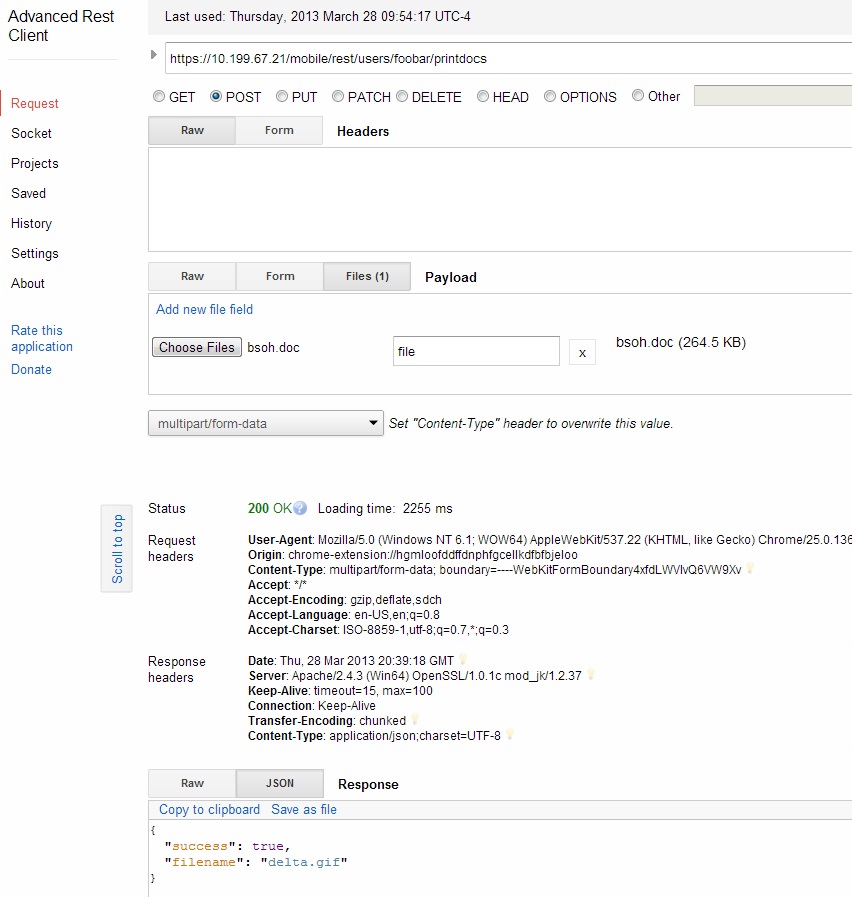
Note: Make sure 'multipart/form-data ' content type is selected. |
Still need help?
If you need additional assistance, please close this window, go to your product's support page and locate 
Get In Touch with Lexmark!
for contact information.
NOTE:
In order to expedite the support process, please be prepared to provide information regarding your issue; e.g., name and version of solution
, problem description
, and affected printer models
.The support agent may request additional information.
LEGACY ID:
HO4003