Article de support pour Lexmark X654DE
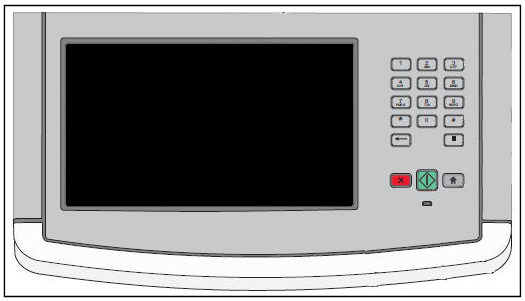
The touch screen display is blank or black
Issue description
The touch screen display does not power on (light up).
Solution
The touch screen display may be in 'sleep' mode. Lightly touch the display and see if the display panel lights up.
If the display does not respond, press the Copy button and see if the printer attempts to make a copy.
Note: If the printer attempts to make a copy, updating the Universal Integrated Circuit Card (UICC) code may correct the issue. The touch screen display does not respond or light up after 'Sleep' mode for instructions.
If the printer does not respond, power off the printer. Allow the printer to sit powered off for 10 to 20 seconds.
Note: Do not power the printer off and on too quickly. Doing so can cause a power issue with the display panel and create this type of issue.
After 10 seconds or more, power the printer on again. See if the display panel powers on correctly. If the display panel powers on correctly, continue using the printer as normal.
Note: If the panel continues to go blank, and the only way to correct it is to power the printer off and on, updating the Universal Integrated Circuit Card (UICC) code may correct that issue. The touch screen display does not respond or light up after 'Sleep' mode for instructions.
If powering the printer off and on does not correct the issue, see if the display is readable at all.
- If the display is blank or completely unreadable, there may be a failure with the power supply. See the directions directly below.
- If the display is readable, but simply too dark to read easily, you may be able to correct the issue by increasing the Screen Brightness setting. To check and change this setting, click here to view the instructions.


Checking for failure of the power supply
Power off the printer. Wait 10 to 20 seconds, then power the printer back on. The motors within the printer should turn within the first minute after the printer is powered on. If this occurs, the power supply is working.
If the printer is getting power, but the touch screen display still fails to light up, there is a likely a failure of the display panel or one of its connecting cables. This will require a service action to correct the issue. For additional assistance, please contact Lexmark Technical Support or a local authorized service center.
If the printer remains silent, look for any LED lights that are on.
Note: If the printer is connected to a network, you can check to see if the network communication light is on. To do this, go around to the back of the printer. Look where the network cable connects into the printer.
If you see the network communication light or any other lights on the printer lit, the power supply is working.
If the power supply is working, but the touch screen display still fails to light up, there is a likely a failure of the display panel or one of its connecting cables. This will require a service action to correct the issue. For additional assistance, please contact Lexmark Technical Support or a local authorized service center.
If no lights on the printer are lit and the printer makes no noises at all on power up, verify the power source.
- If the printer is connected into a power strip, try plugging the printer straight into a wall outlet.
- If the printer is plugged into a wall outlet, test the outlet by plugging another device, such as a lamp, into the outlet or plug the printer into another location.
If you confirm that the power source is good, the power supply on the printer may be failing. This will require a service action to correct the issue. For additional assistance, please contact Lexmark Technical Support or a local authorized service center.
Check and Adjust the LCD Brightness setting
If the display is readable, but very dim, it is possible that the screen brightness has been set too low. To check this setting, perform the following:
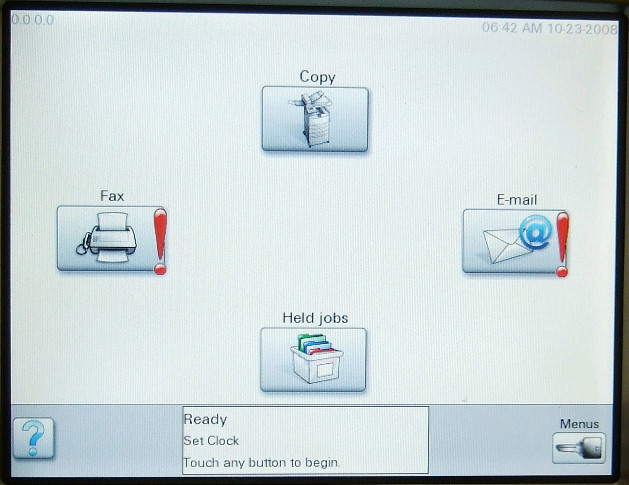
At the 'Ready' screen, press the Menus button in the lower right-hand corner of the touch screen. A series of menu choices should display.
Press the blue arrow next to Settings. A new set of menu choices should appear.
Press the blue arrow next to General Settings. Another set of menu choices should appear.
Look for Screen Brightness. If Screen Brightness is not showing, press the blue arrow down icon until you see the Screen Brightness setting.
The current value for Screen Brightness will be displayed. The number should be somewhere between 20 and 100.
- If the number is less than 100, press the blue arrow right icon and increase this number to 100. Press the Submit button in the lower left-hand corner to save the new value. If this corrects the issue, press the home icon button to return to the 'Ready' screen and continue using the printer as normal.
- If the Screen Brightness setting is already at 100, or if increasing the Screen Brightness setting has no effect, the printer may require a service action to correct the issue. For additional assistance, please contact Lexmark Technical Support or a local authorized service center.
Note: As a last resort before service, you can try resetting the printer back to its factory defaults. This will reset all user settings on the printer. To do this:
At the 'Ready' screen, press the Menus button.
Press the blue arrow next to Settings.
Press the blue arrow next to General Settings.
Look for Factory Defaults. If Factory Defaults is not showing, press the blue arrow down icon until you see Factory Defaults.
'Do not Restore' should now display. Press the blue arrow right icon once and change this to 'Restore Now'. Press the Submit button in the lower left-hand corner. The printer will reset all user settings back to their factory default values.
If the display panel remains dark after this, please contact Lexmark Technical Support for further assistance.


LEGACY ID: SO4989
Noter cet article
Vos commentaires sont les bienvenus. Les commentaires nous aident à identifier les contenus qui doivent être actualisés pour plus de précision ou de fidélité.
Merci de votre commentaire!