Article de support pour Lexmark C925
Printer is unable to recognize the wireless card installed
Overview
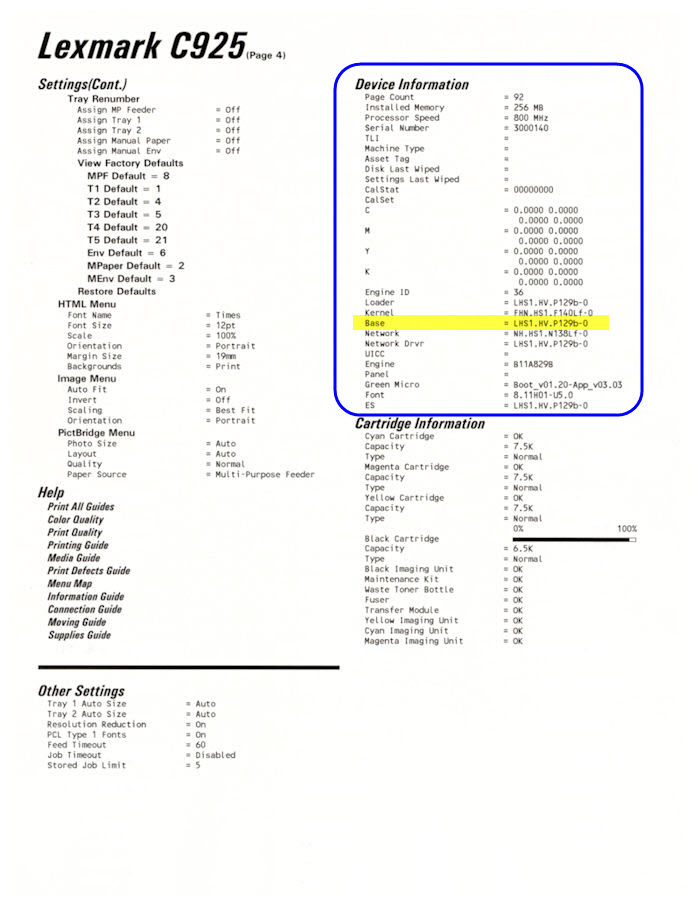
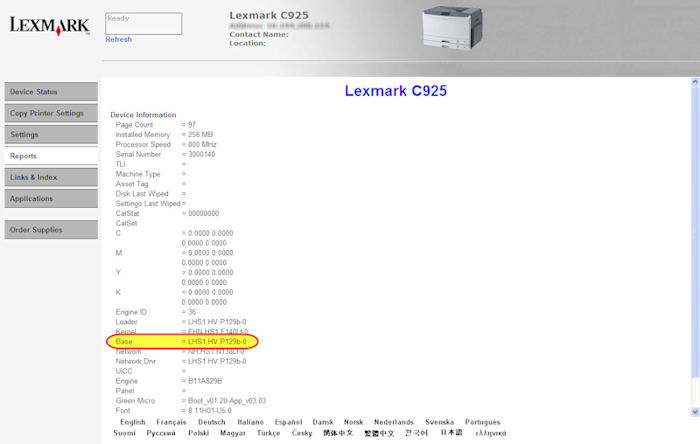
You can install an optional wireless card on a C925 printer in order to support wireless network connectivity. However, for the wireless card to work, the printer should have the Base Code of LSH1.HV.P129 or the latest version.
Procedure
Step | Action |
1 | Determine the code level of the printer using any of the two methods below. Printing the Menu Settings Page
 Using the Embedded Web Server (EWS) Note: This method requires the printer to be connected to the network via Ethernet cable.
|
2 | Verify whether the code level is at least LSH1.HV.P129. If the code level is below P129, proceed with the next step to do the update. Otherwise, contact Lexmark Technical Support for other troubleshooting suggestions. |
3 | Download the latest code from the Lexmark Support website. Type C925 as your Authorization Keycode and press Enter. Save the file and extract it on the same directory. (Make a note as to where you have the files saved.) Note: The downloaded ZIP file should contain a text document (Update Instructions) and a “.fls” file (actual code). |
4 | Update the printer code. Click here for the Firmware update instructions. Note: If the printer still can’t recognize the card or if you are having difficulties doing the update, contact Lexmark Technical Support for further assistance. |

LEGACY ID:TE337
Technical Service Bulletin | Problem Description | |
Machine Type/Model | 5041-030 | The printer does not recognize the optional wireless card that is installed. Solution Update printer’s base code with the latest version. |
Date Created | 01/20/2011 | |
Last Updated | 01/21/2011 | |
Safety Issue? | No | |
Code Update? | Yes | |
Engineering Change? | No | |
New Parts? | No | |
Old Parts Status | n/a | |
Voltage: 120/240 | All | |
Serial No. Range | All |
Step | Action |
1 | Ensure that the printer has the latest base code. Do this by using the suggestions in the customer-level Troubleshooting table. If the printer still does not recognize the wireless card, proceed with the next step. |
2 | Power off the printer and wait for 10 – 20 seconds before you power it back on. If the printer still does not recognize the card after restarting, proceed with the next step. |
3 | Power off the printer and reseat the wireless card. Ensure that the card is firmly seated into the connector.  CAUTION! Before removing the wireless card, ensure the power supply cord is disconnected from the power outlet. Do not remove or install any optional card with the power supply turned ON. |
4 | Power on the printer after reseating the wireless card and see whether it has been detected. Replace the wireless card if the printer is still unable to detect it. |
Noter cet article
Vos commentaires sont les bienvenus. Les commentaires nous aident à identifier les contenus qui doivent être actualisés pour plus de précision ou de fidélité.
Merci de votre commentaire!