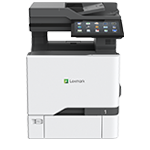
Printer features: Laser, multifunction, color
Lexmark XC4352 Support
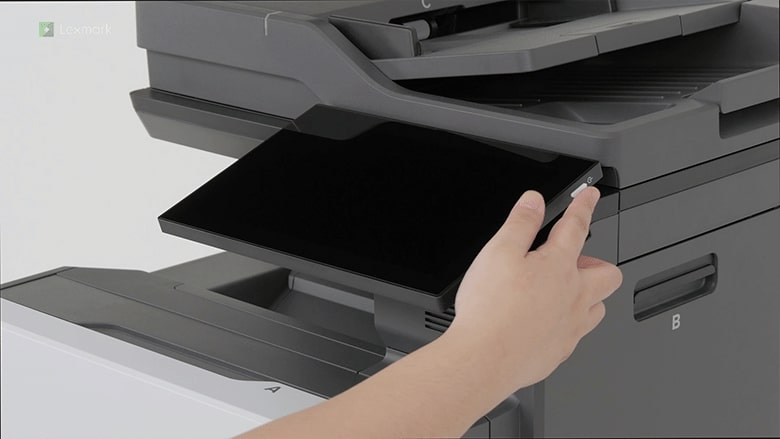
Learn how to set up your new printer.
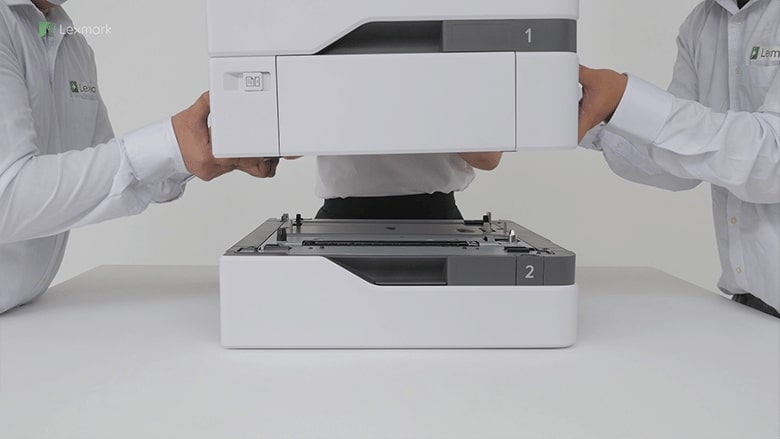
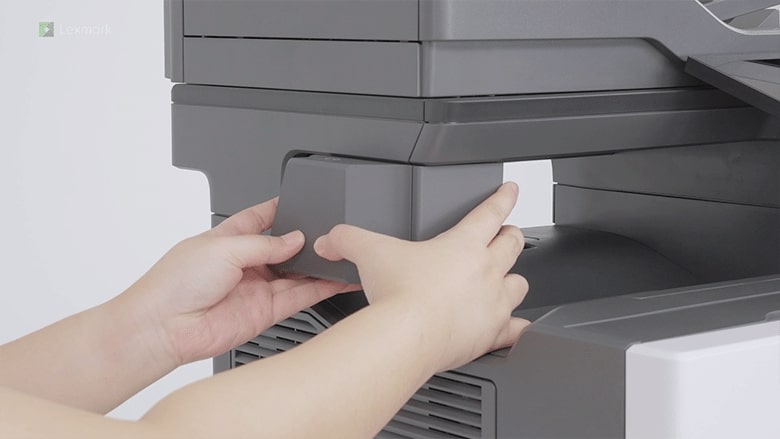
Know which precautions to take and how to position the printer when you are adding an optional tray.
Learn how to install the intelligent storage drive on your printer to enable it to print complex jobs and collate large print jobs.
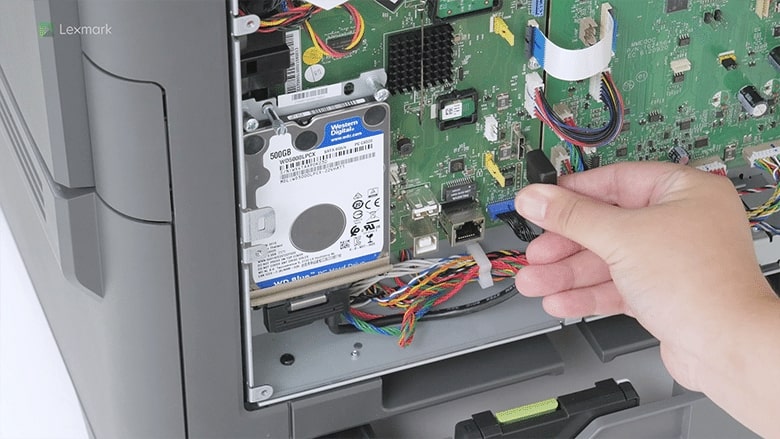
Learn how to install a hard disk on your printer to let it store large amounts of information.
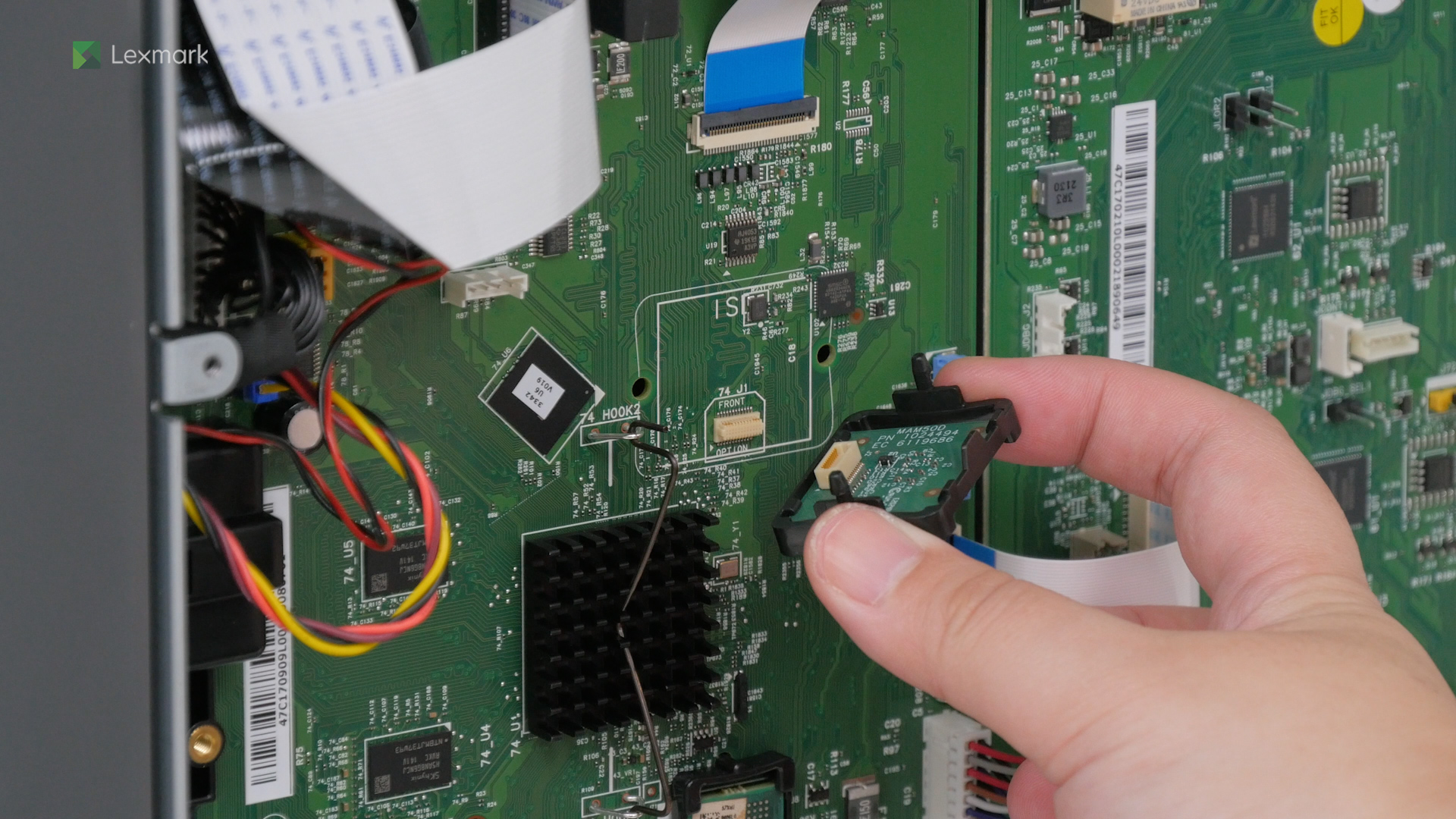
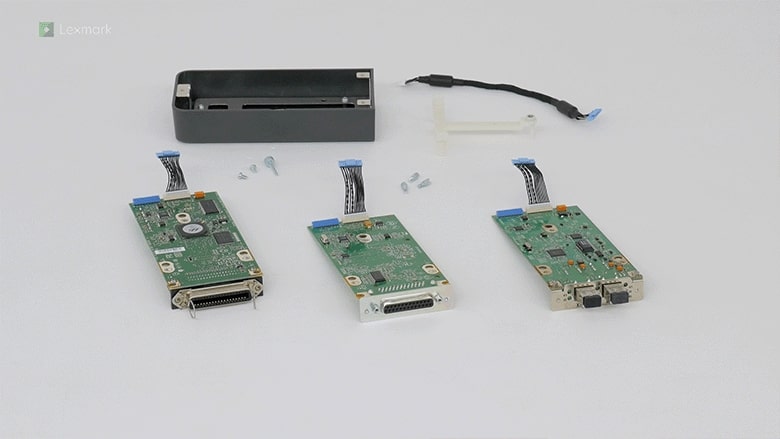
Add an internal solutions port to for your printer to connect to wireless networks. Follow this quick installation guide.
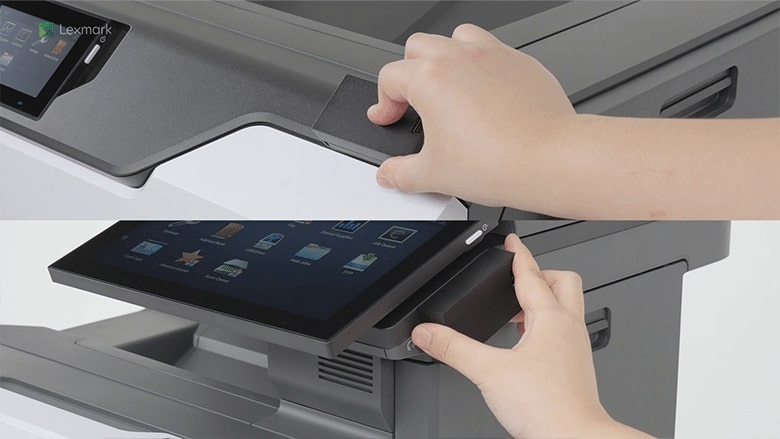
Learn how to install the convenience stapler on your printer.
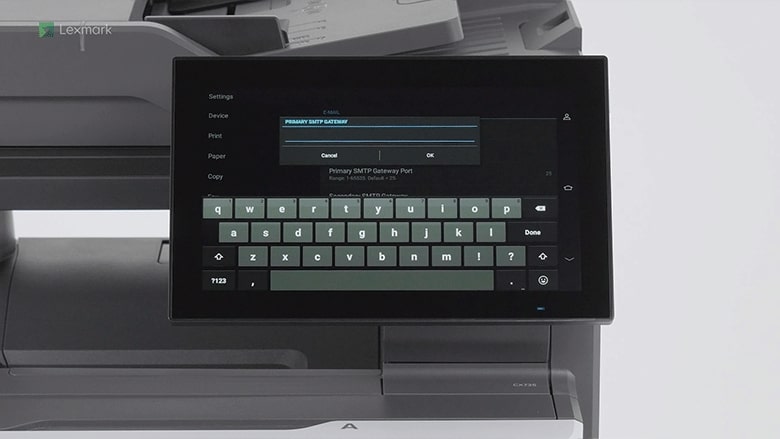
Configure the SMTP settings to use the e-mail function of your printer.
Learn how to connect your printer to a Wi‑Fi network.
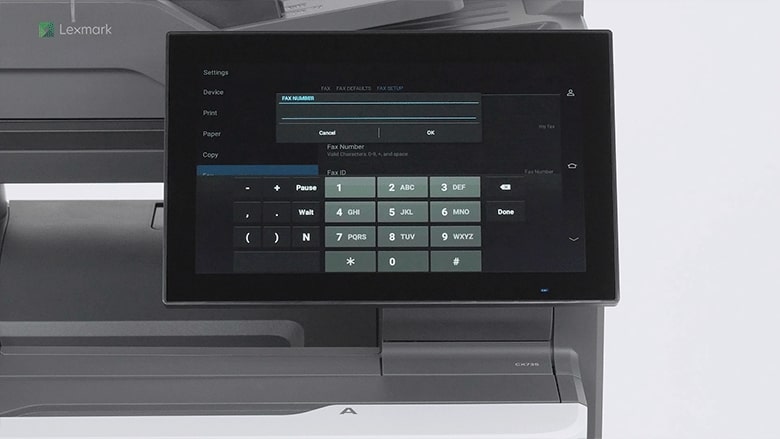
Configure your printer to send and receive analog fax messages.
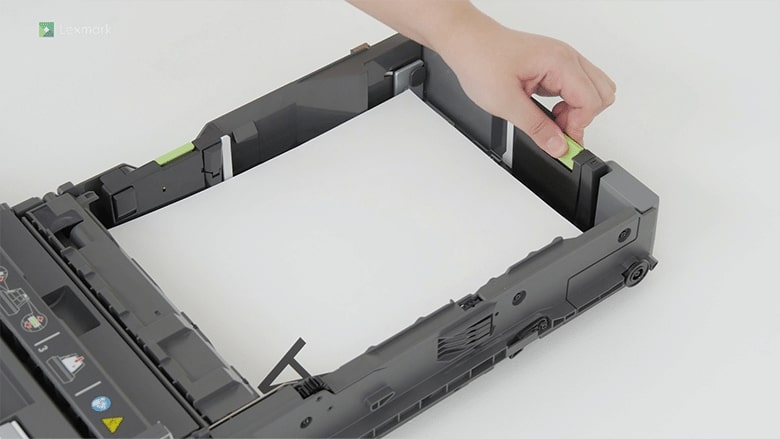
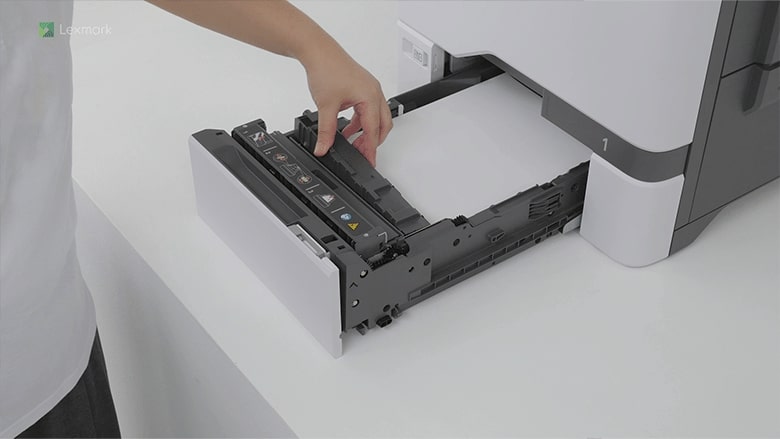
For reliable printing results, use these instructions on how to load paper properly into the tray of your printer.
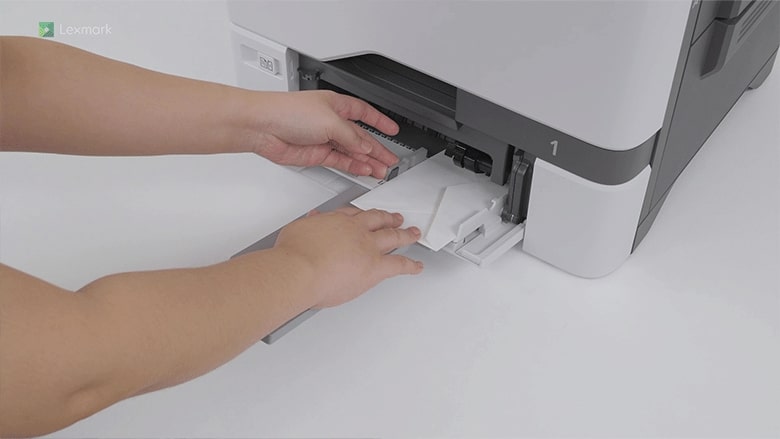
Learn how to load paper and specialty media into the multipurpose feeder to avoid paper feed errors.
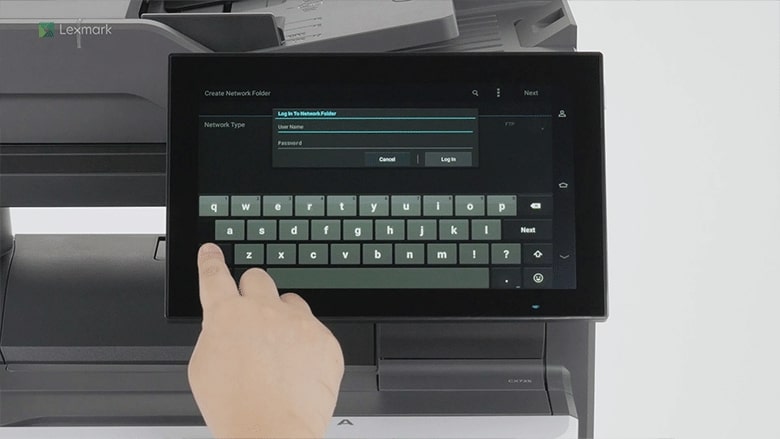
Learn how to scan a document and save it to a network folder.
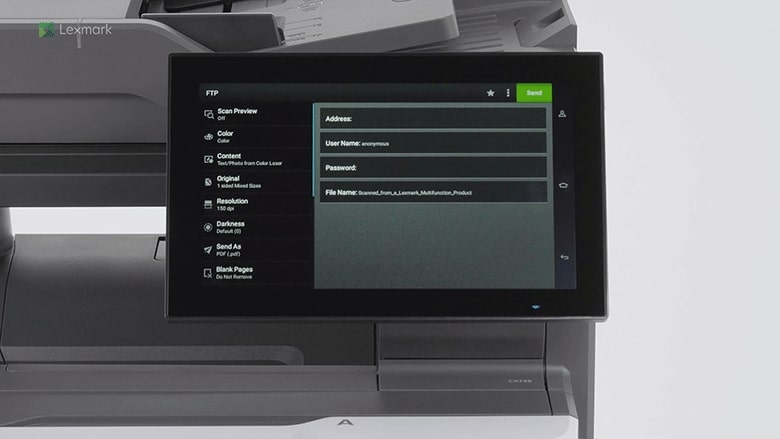
Learn how to scan a document and save it to an FTP folder.
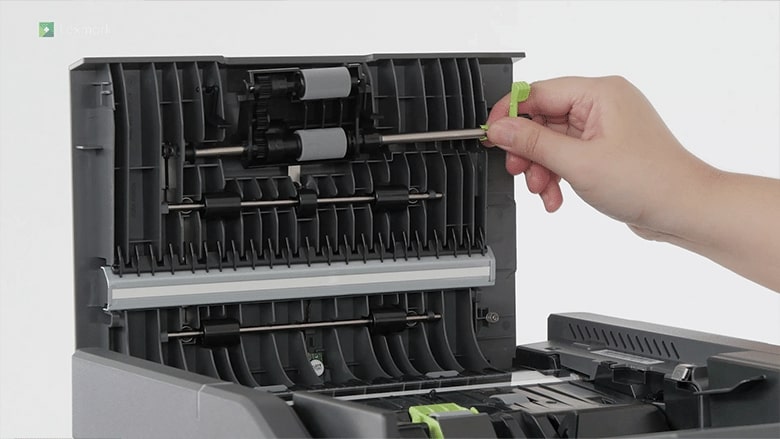
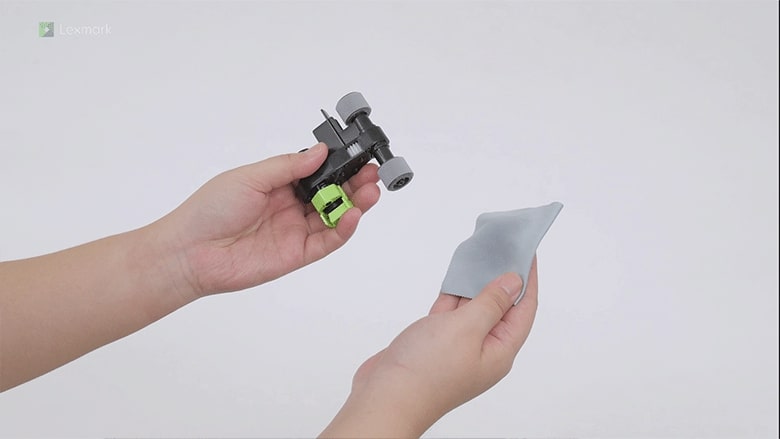
Learn how to replace the rollers in the automatic document feeder of your printer.
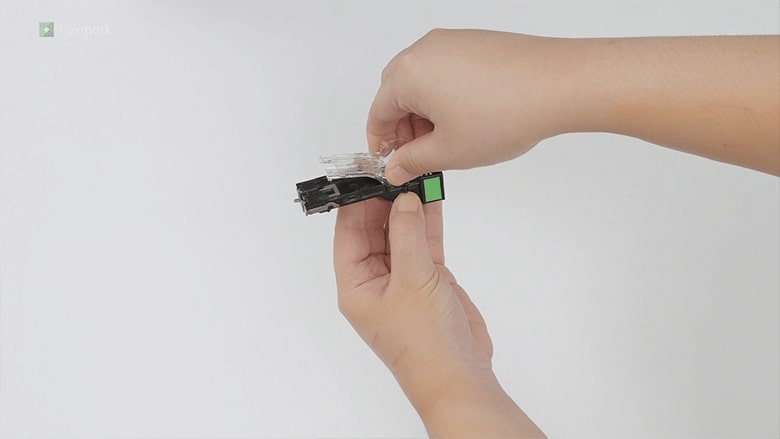
Follow these steps on how to change the convenience stapler properly.
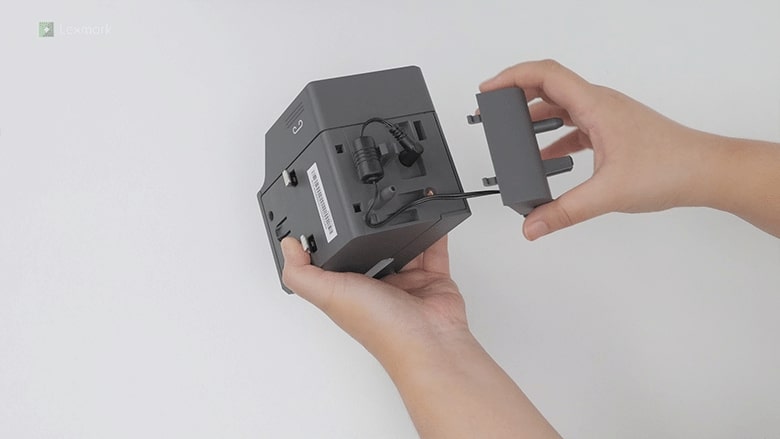
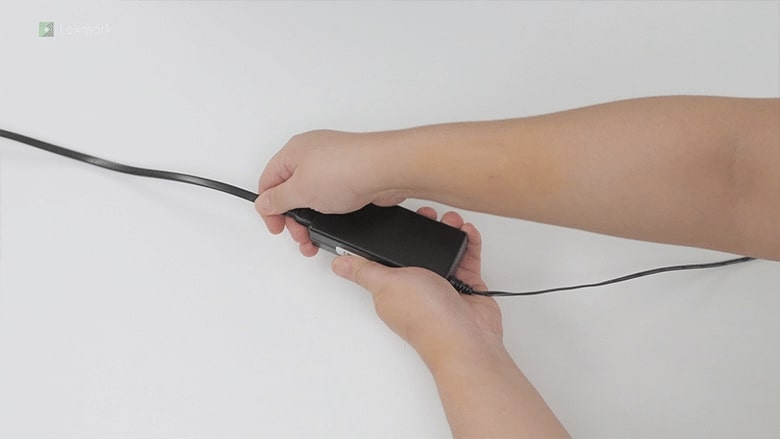
Follow these steps on how to change the power supply of the convenience stapler.
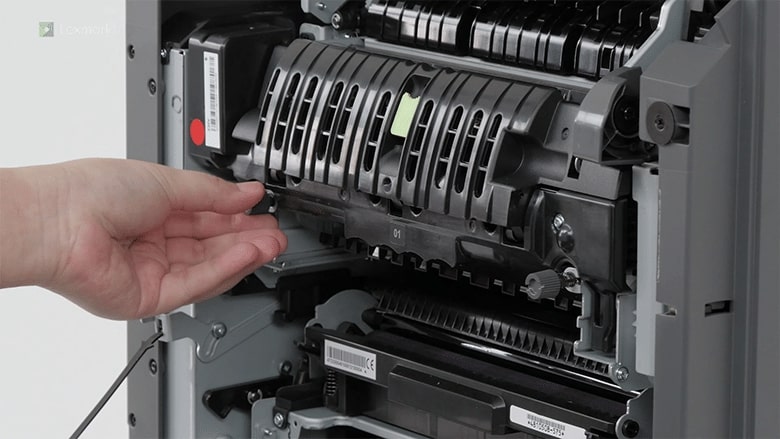
Know which door to open and how to remove the fuser when you are installing a new one.
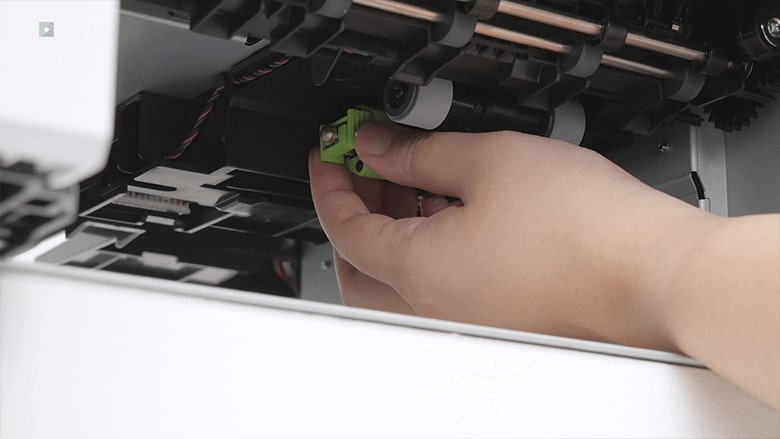
Learn how to replace the pick roller in the tray or in the multipurpose feeder of your printer.
Change the defective separator bracket to maintain printer efficiency.
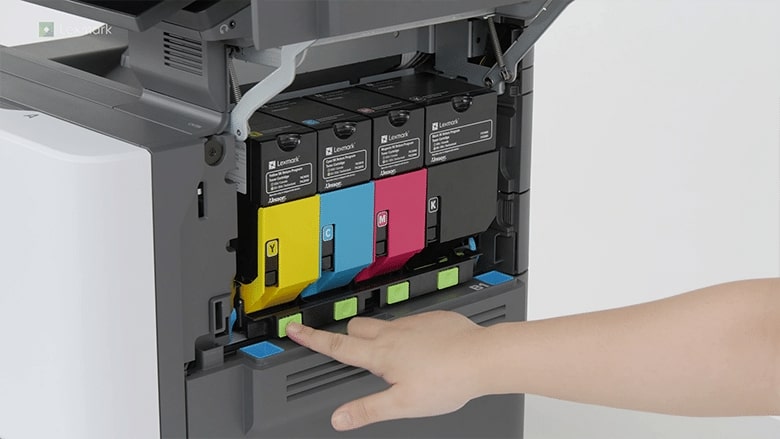
Install a new toner cartridge when the replace cartridge message appears for the affected color.
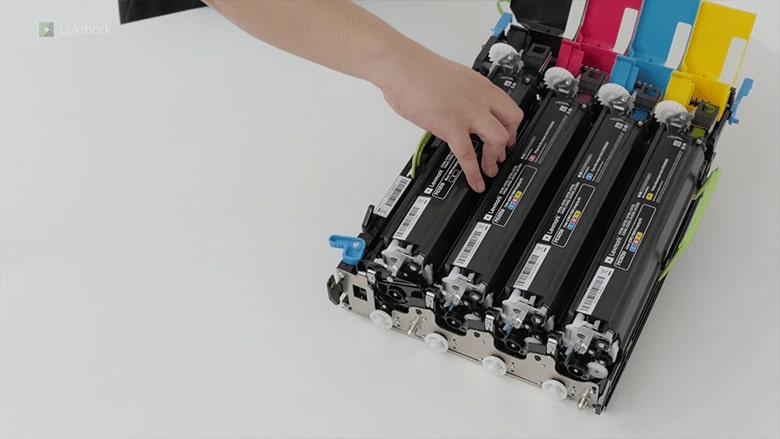
Avoid printing delays. Install a new black imaging unit when the printer prompts you to replace it.
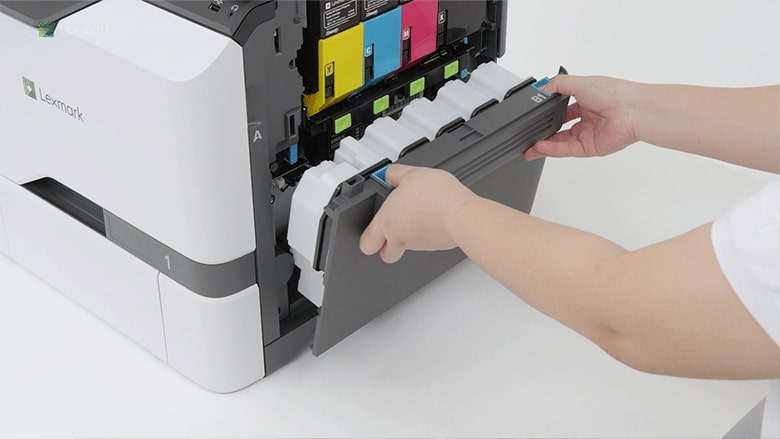
Prevent excess toner powder from falling freely into the printer. Change the waste toner bottle when it is full.
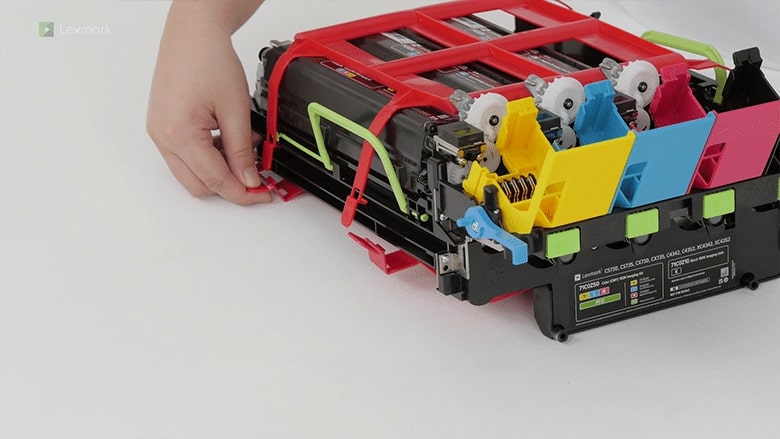
Make color imaging kit replacement fast and easy. Follow these steps on how to change the kit properly.
Learn how to replace a staple refill in the convenience stapler.
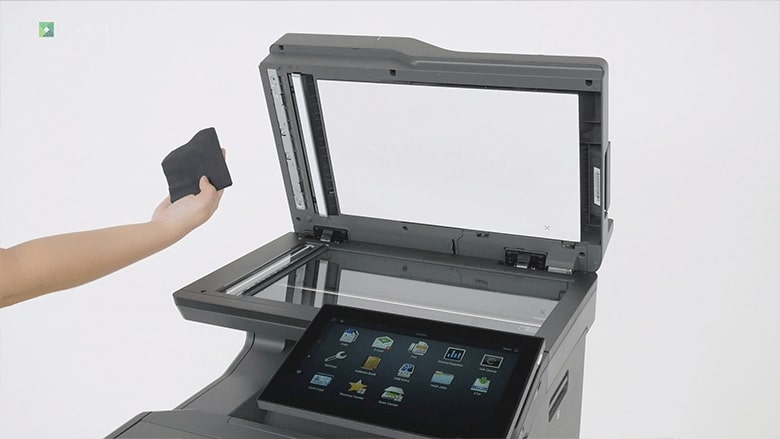
Clean your scanner periodically to avoid getting blurry and faded scanned images or text.
Use an alcohol-based solution with at least 70% alcohol and water and use it according to the manufacturer safety guidelines when cleaning the pick rollers.
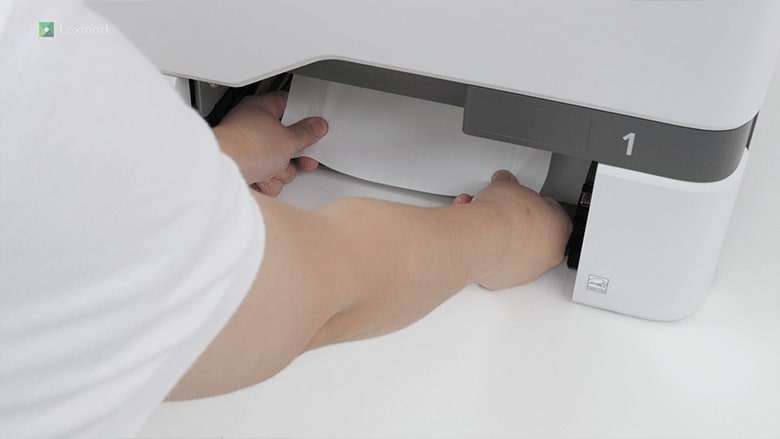
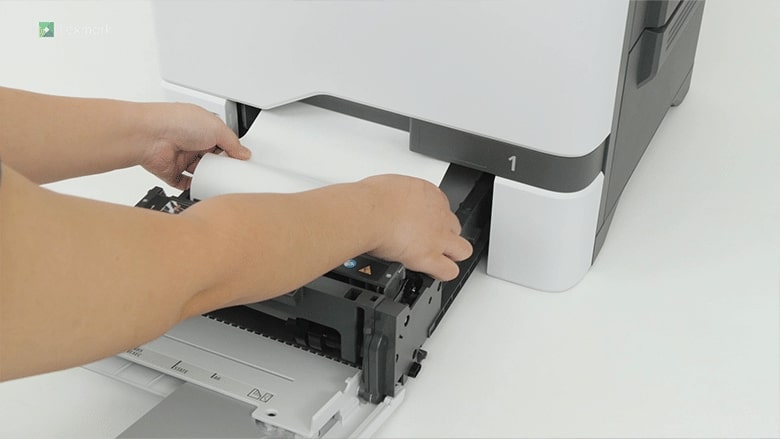
Learn how to remove the jammed paper in the tray.
Remove paper that is stuck in the multipurpose feeder to continue printing.
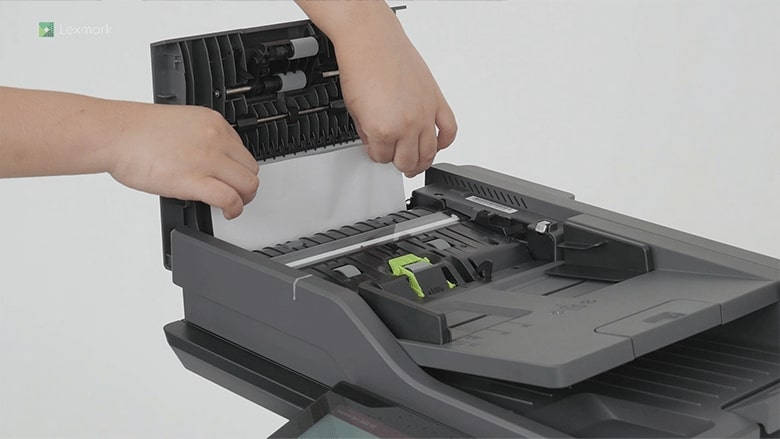
Remove the paper that is stuck in the automatic document feeder to continue scanning.
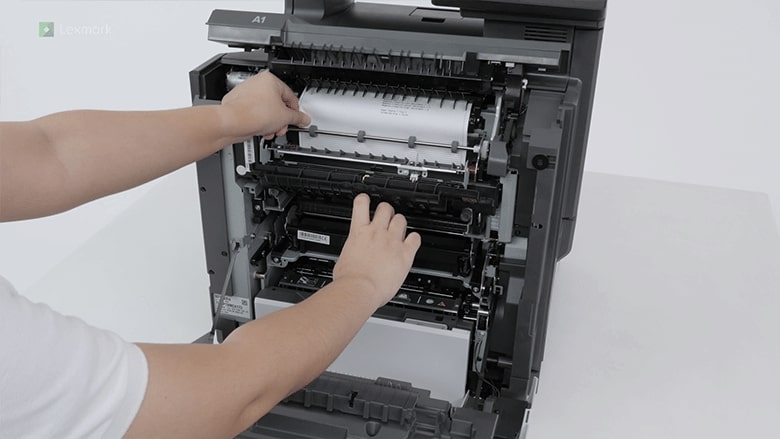
Remove the jammed paper in the fuser area or in the duplex unit to continue printing.
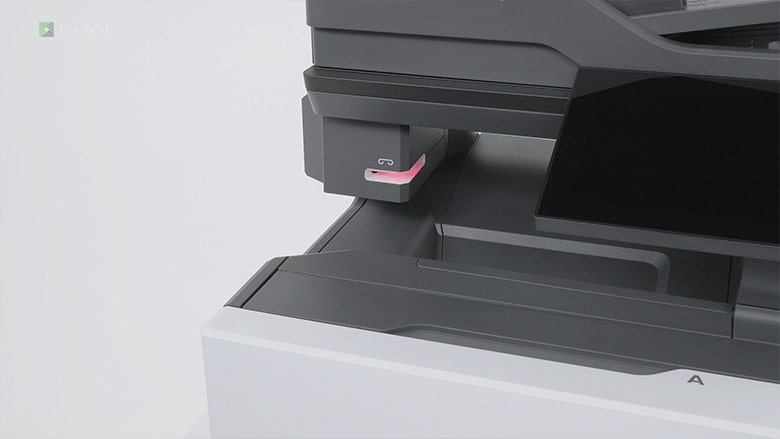
Different troubleshooting scenarios when the convenience stapler flashes red light.