Support-Artikel für Lexmark T642
Black line of toner down the page or Part of the page is covered in toner
Issue description
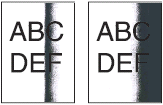
A line of toner, typically vertical in direction, will appear on the page, or one side of the page will be black. See the examples below.
Solution
Reseat the toner cartridge
The toner cartridge may not be seated correctly. Make sure the left and right sides of the cartridge are in all the way. The cartridge should click into place when correctly installed.
Measure the distance of the vertical line from the left edge of the paper
If the vertical line started in a faint gray and over time became darker, check whether its distance from the left edge of the paper is constant on every printed page. Measure the distance and verify that the vertical line is 72mm (2.8 inches) away from the left edge of the paper.
- If the vertical line runs from top to bottom of the page and is 72mm (2.8 inches) away from the left edge of the paper, the fuser roller may have been damaged. Contact Lexmark Technical Support and seek service for the printer.
- If the vertical line is on different parts of the printed page and appears in random, continue with the suggestions below.
Bright light/sunlight entering the printer (Lexmark T640 models ONLY)
If your printer is a Lexmark T640 or T640n model, make sure the right-hand side of the printer is not exposed to bright light, especially sunlight. If it is, try turning the printer or move the printer to another location away from the light source.
Light can enter the printer through the vent for the exhaust fan. If too much light gets inside this area, a line of toner will appear on the page. Another print quality issue that can occur is that one side of the page will appear black. Normally the exhaust fan blocks any light from entering the printer. However, there is no exhaust fan present on the T640 models.
If the printer cannot be moved or relocated, there is a shield that can be added to the exhaust vent to help block light from entering the printer. For more information, contact Lexmark Technical Support.
Printing on media other than plain paper
If you are printing on anything other than plain copy paper, please remove that print media. Certain types of paper and other print media, like labels and card stock, can allow a build-up of toner on the printer rollers.
Try printing 20 - 40 pages on plain copy paper. If the toner streaks begin to clear, the issue may be related to the type of print media you are using. See the Understanding paper and specialty media guidelines section in the printer's Users Guide for more information.
Try another toner cartridge
If you have another toner cartridge available (new or used), try it in the printer to see if that resolves the issue. If you confirm that a toner cartridge is the cause of the issue, please carry out the following checks:
- With the defective cartridge installed, print out a Printing the Menu Settings Page. Check the Toner Level setting on the page. If the toner level reads Low or is below 15% of the bar, the cartridge is probably near the end of its life and should be replaced.
- If you know the page count of the printer when the defective cartridge was originally installed, check the current page count on the Printing the Menu Settings Page. If the difference between the current page count and the original page count is more than 80% of the cartridge's yield rating, the toner cartridge is probably near the end of its life and should be replaced.
- If the cartridge appears to have failed long before reaching its expected yield, please carry out the following checks:
- Confirm that you are using an original Lexmark brand toner cartridge. Cartridges manufactured by a third party may not be compatible with the printer. If a third-party cartridge is causing this issue, contact the point of purchase for additional support or replacement of the toner cartridge.
- If this is an original Lexmark cartridge, confirm that it has not been refilled or reworked in any way. Refilling the toner cartridge can cause it to begin leaking toner. If the cartridge has been refilled or reworked, contact the place where it was refilled to have it replaced.
- If this is an original Lexmark toner cartridge that has not been refilled or reworked in any way, please contact the point of purchase first. They may have a replacement policy. If the point of purchase cannot help or if the cartridge was purchased directly from Lexmark, please contact Lexmark using the same phone number or address you used to order the cartridge. If you cannot remember or locate the number you used to contact Lexmark to order the cartridge, contact Lexmark Technical Support. A representative there may be able to provide assistance.
Check the charge roll assembly
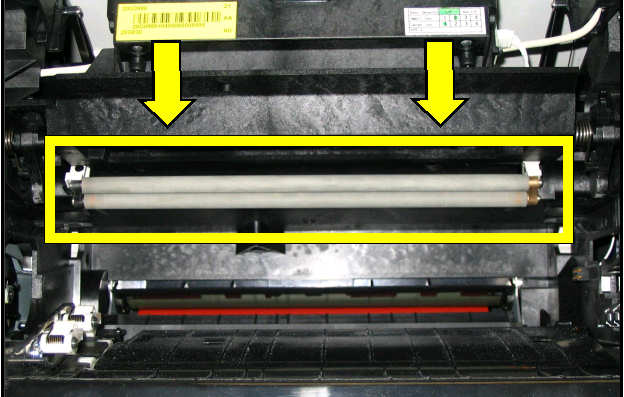
If this issue occurs with more than one toner cartridge, check the charge roller assembly. These rollers are located in the upper part of the printer. See the area highlighted in the image below. For a larger version of this image, click here. If the rollers appear dirty, power off the printer and gently rub the surface of the rollers with a dry, lint-free cloth.
Note: If either of the rollers appears to be damaged, the charge roller assembly may need to be replaced. Contact Lexmark Technical Support for more information.
Print the Troubleshooting Guide
If none of the suggestions above corrects the issue, you can print off the Print Quality Troubleshooting guide to look for additional troubleshooting steps to try before seeking service on the printer.
These pages list various print quality issues and suggestions on how to correct them.
Note: The information in these pages is also in the Troubleshooting section of the printer's User's Guide.
| Step | Action |
|---|---|
1 | Make sure the printer is at the Ready status. Press the key icon button. |
2 | Press the up arrow button until the check mark on the screen is in front of Help. Press the check button button once. A new list of menu choices should appear. |
3 | Press the up arrow button or down arrow button until the check mark is in front of PrintQuality. Press the check button again. |
4 | The printer will briefly display the message Printing Print Quality and begin printing the five-page Print Quality Troubleshooting guide. |


LEGACY ID: SO3701
Artikel bewerten
Wir schätzen Ihr Feedback. Es wird von uns genutzt, um Inhalte zu erkennen, die zur Verbesserung der Genauigkeit oder Nützlichkeit aktualisiert werden müssen.
Vielen Dank für Ihr Feedback!