Support-Artikel für Lexmark X264
200, 201, or 202 type paper jam error
Issue description
The printer repeatedly jams paper each time you print, or a Paper Jam message displays on the screen, yet no paper can be found in the printer.
Solution
Locating the jammed page
The numeric error code that appears on the printer screen indicates the location of the jammed page. For 200, 201, and 202 type paper jams, the printer registers that a page has jammed inside the middle or front of the machine.
To clear the jam message and resume printing, follow the directions below to locate and remove the jammed page.
Note: If the print job consisted of more than one page, check and clear the entire paper path.
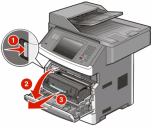
Open the front door, and then remove the photoconductor kit and toner cartridge.
Look inside the printer. Remove any jammed paper you see there. In addition, locate the green guide tab at the front of the printer and lift it. Confirm there is no jammed paper under the tab.
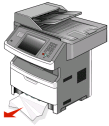
Open the rear door of the printer. Remove any jammed paper you find in this back area of the printer.
Once you have confirmed that the entire paper path is clear, close the rear door. Reinstall the photoconductor kit and toner cartridge, and then close the front door. Reinstall Tray 1.
Press Continue and try printing again.
Note: If the Jam Recovery setting is set to 'On,' the printer will print out a new copy of the page that jammed. If Jam Recovery is set to 'Off,' then the printer will not reprint the jammed page. The factory default setting for Jam Recovery is 'Auto,' which means the printer will reprint the jammed page if enough printer memory is available.



If the jamming continues
If the paper jam message continues, see if the numeric error code remains the same or if it has changed to a new number.
- If the error code has changed to a new number, the printer has detected a page jammed elsewhere in the printer. Use the table below to help locate the jammed page.
- If the same error code continues to occur, try the following.
- Confirm that the entire paper path is clear of all jammed paper and paper fragments.
- Make sure the paper/print media is properly loaded into the paper tray, including:
- Confirm that the paper stack does not pass the 'max fill line' indicator on the tray.
- Confirm that the paper support guides on the tray are set in the correct position. The support guides should lightly rest against the paper stack, preventing the stack from shifting while not binding the paper.
- Make sure the paper stack is flat and not curled. Feed issues can occur if the leading edge of the paper stack is curled.
- Do not mix different sizes or types of paper in the same tray.
Note: For more detailed tray loading instructions, refer to the printer's User's Guide.
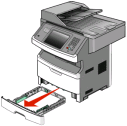
- Remove the paper trays and check for a sheet of paper that might be jammed behind the trays.
- Try printing on plain copy paper if you are not already doing so. Please try this even if the print media you are using has worked in the past. Certain specialty media are more difficult for the printer to feed, and they can increase the chances of jamming.
- For additional tips on paper jam prevention, see the 'Avoiding Jams' chapter in the printer's User's Guide.
- If the jamming continues after all of the above recommendations have been tried, the printer may require service to fix the issue. Please contact Lexmark Technical Support for additional assistance.
- The full numeric error code
- The location where the jammed page is located
- Is the leading edge of the page damaged, or does it appear to be caught on anything?
- Is the jammed page crooked?
- Provide as much information on the paper used as possible: manufacturer, brand name, size and weight, hole-punched or perforated?
| Error Code | Location in the printer |
|---|---|
231 | Open the front door and rear door again. |
233 | Remove the 'Tray 1' paper tray and look behind the green guide tab. If no jammed page is found, open the front and rear doors again. |
234 | Open the rear door again. If no jammed page is found, remove the 'Tray 1' paper tray and look behind the green guide tab. |
235 | Examine the standard exit (output) bin. |
240 to 249 | Remove the 'Tray 2' paper tray. If no jam is found, remove the 'Tray 1' paper tray. |
250 and 251 | Open the multipurpose feeder door. If no jammed page is found, open the front door and remove the photoconductor kit and toner cartridge. |
290 to 295 |
Note: When contacting Lexmark Technical Support, or arranging a service call, try to provide as much of the following information as possible.
LEGACY ID: SO4756
Artikel bewerten
Wir schätzen Ihr Feedback. Es wird von uns genutzt, um Inhalte zu erkennen, die zur Verbesserung der Genauigkeit oder Nützlichkeit aktualisiert werden müssen.
Vielen Dank für Ihr Feedback!